
A “Spending worksheet” tab has been added to the monthly OverDrive reports. Member libraries may use this to help keep track of their own spending as compared to system-wide spending across all Advantage accounts. This worksheet is pre-filled with formulas and system-wide totals. To use, members can follow the instructions below to fill in the highlighted fields with their own data.
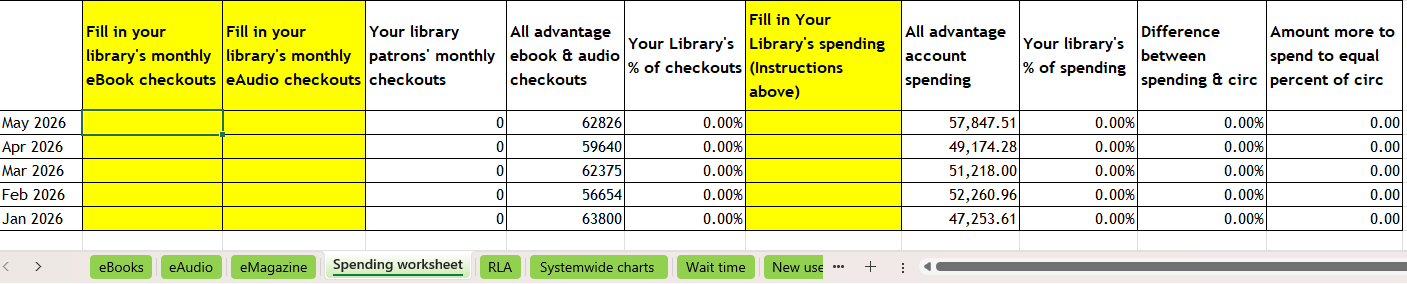
Please note: The results from this worksheet may differ slightly from the semi-annual reports issues by the Ad Hoc OverDrive Committee, as Cost-per-circ (CPC) checkouts are not removed from the totals, and additional spending done by Ulster County Library Association in the shared collection is not included in the Advantage spending.
Using the OverDrive Spending Worksheet:
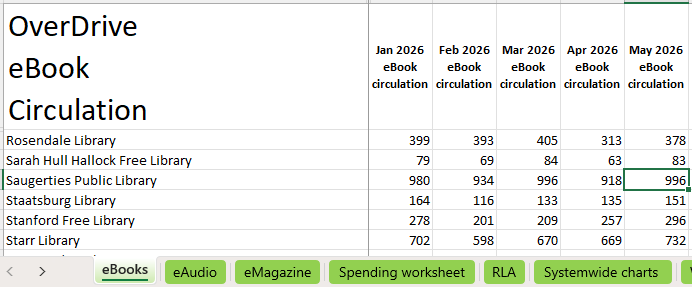
For Column B, go to the “eBooks” tab and copy your library’s monthly total from the corresponding month.
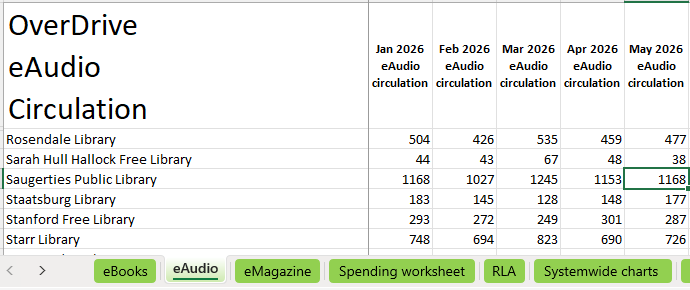
For Column C, go to the “eAudio” tab and copy your library’s monthly total from the corresponding month.
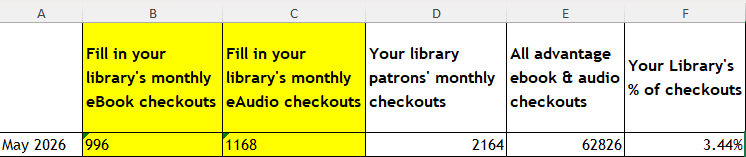
Once Columns B and C are filled in, the formulas in Columns D and F will populate those fields automatically:
Look up Your Library’s monthly spending
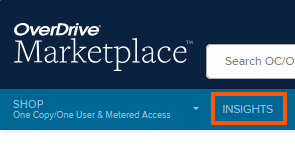
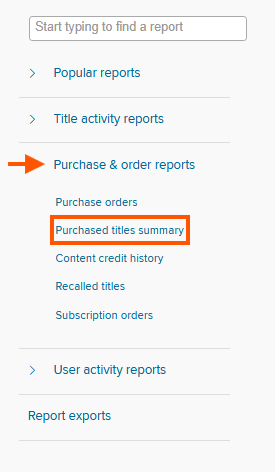
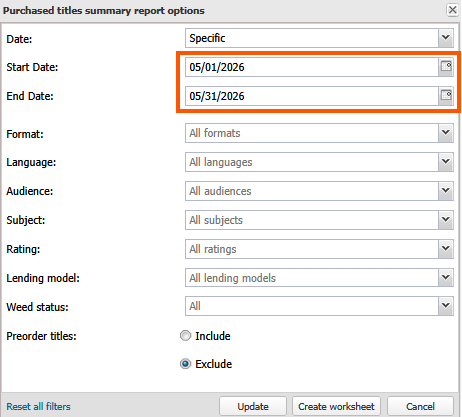
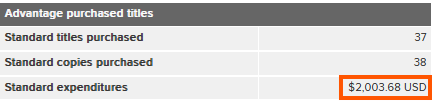
In the resulting report, look at the “Advantage purchased titles” column, and take the dollar amount from the “Standard expenditures” to fill in Column G of the worksheet.
The formulas in columns I, J and K will populate will populate the remaining fields automatically.

If the amount in Column K is a positive number, consider increasing your budget for future months to make up the difference. If the amount more to spend is a negative number, your library has purchased beyond your share of spending by that amount.