
Cost-per-circ is a purchasing model available for many OverDrive titles.
CPC titles added to your Advantage Collection may be borrowed simultaneously by multiple patrons.
Libraries that wish to use CPC titles in their collection must follow the guidelines in the Resource Sharing Standards:
-
-
- Cost Per Circ purchasing is used once the library has demonstrated that it is purchasing in line with recommended spending requirements (OverDrive Ad hoc committee recommendation) or has met requirements of section 1 A.
-
Exceptions:
-
-
-
-
- Local only demand
- Book club
- Local author
- Low/no system wide demand title to create available copy at low cost)
~Approved by Directors Association 6/13/2023, amended 9/22/2023
-
-
-
-
-
- Cost Per Circ spending on any platform is not credited to spending requirements set forth by the Ad Hoc committee and approved by the DA ~last revision 9/22/2023
- Cost Per Circ spending on any platform is not credited to spending requirements set forth by the Ad Hoc committee and approved by the DA ~last revision 9/22/2023
-
Add CPC Copies
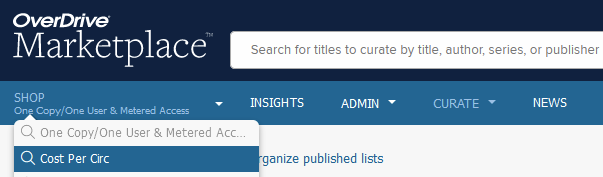
In the OverDrive Marketplace, visit the CPC shop by clicking on the arrow next to the SHOP menu and select “Cost Per Circ”
Setting a CPC Budget
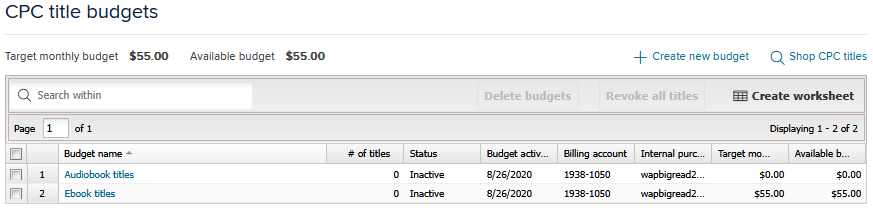
You don’t have to worry about demand for CPC copies exceeding what your library can afford, as you have the option to cap your budget at any amount you choose.
In the Cost-per-circ shop, click on “Manage CPC budgets” from the left side menu to set your monthly budget amounts.
For more information, visit:
How to create CPC budgets
How to add CPC titles to a budget
Checkout Limits
Users may borrow 3 CPC titles per format per month. (3 audiobooks, and 3 ebooks)
This limit is set at the consortium level and cannot be customized for individual libraries.
Ptype Restriction
No need to be concerned about CPC checkouts from users system-wide. Only patrons with a ptype that matches the patrons served by your Advantage account will be able to see your available CPC titles and check them out.
CPC copies will not appear to your patrons if they are logged out of their account, nor to anyone logged in as a patron of another library.
If you are considering using a CPC title for a book club selection, be aware that if any book club members are from another neighboring town, your library’s CPC copies will not be available to them to borrow.
Please note: If you signed a Public Library Connect agreement with your local school districts, the students would also have the same access as your Advantage patrons.
Possible reasons for holds on CPC copies:
- The patron has already reached their limit of 3 CPC checkouts for the month.
- The library has reached the maximum CPC monthly budget
- When the hold was delivered to the patron, they opted to deliver later or suspend their hold at that time.
Filling holds with CPC copies
If you have several patrons on the wait list for a title when you add a CPC copy, your CPC budget for the month will first be used to fill outstanding holds for your patrons.
If your budget is enough to satisfy all outstanding holds, each patron will get a notice that their hold is ready for checkout, and that amount of your monthly CPC budget will be reserved for them until they check it out or the 3-day checkout window expires.
If your budget is not enough to satisfy all outstanding holds, OverDrive will notify as many patrons as the budget will allow in the order that the holds were placed.
Patrons still have the option to suspend or delay their checkout within 3 days. If a patron postpones their checkout, or does not act within the 3-day checkout period, the CPC cost will no longer be reserved for that checkout.
If there are more local holds that can be satisfied by a CPC copy, OverDrive will notify the next patron in the queue.
If there are no more holds, CPC copies will appear to Advantage patrons as Available for checkout so long as there are funds remaining in the budget.
Revoking CPC copies
To remove all CPC copies, from your collection, select “Revoke all CPC titles” from the CPC shop, below the link for Manage CPC budgets.
To review your CPC titles to revoke, go to the CPC shop, and do an Advanced search.
Limit the “Holdings” to Adv: Owned as CPC, and you will get a list of all the CPC titles your library has offered.
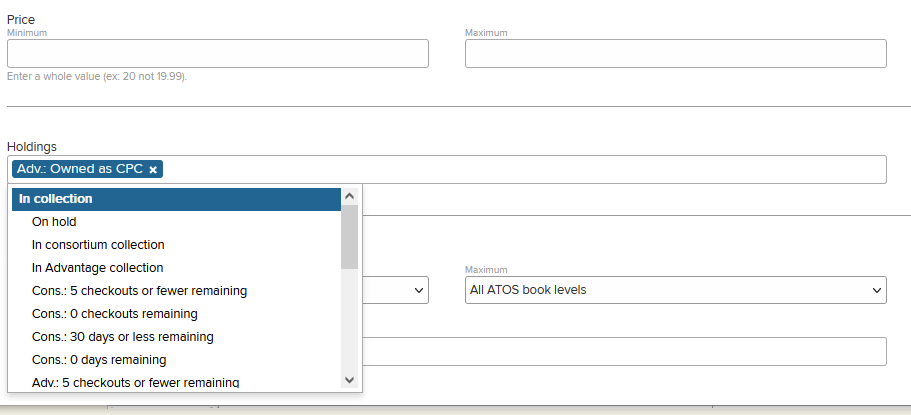
In the list that it generates, select the “Revoke” option near the price to remove it from your CPC offerings.
For more information, visit: How to revoke CPC titles