
The Serials module in Sierra allows you to keep track of your periodical issues as they arrive.
In order to do this, you will need a Checkin Card for your subscription. The Checkin Card will allow you to predict when issues should arrive, know when they are late, claim unreceived copies, and more.
You will want to start this process by searching for your periodical title- from the Serials Checkin function, search for your title.
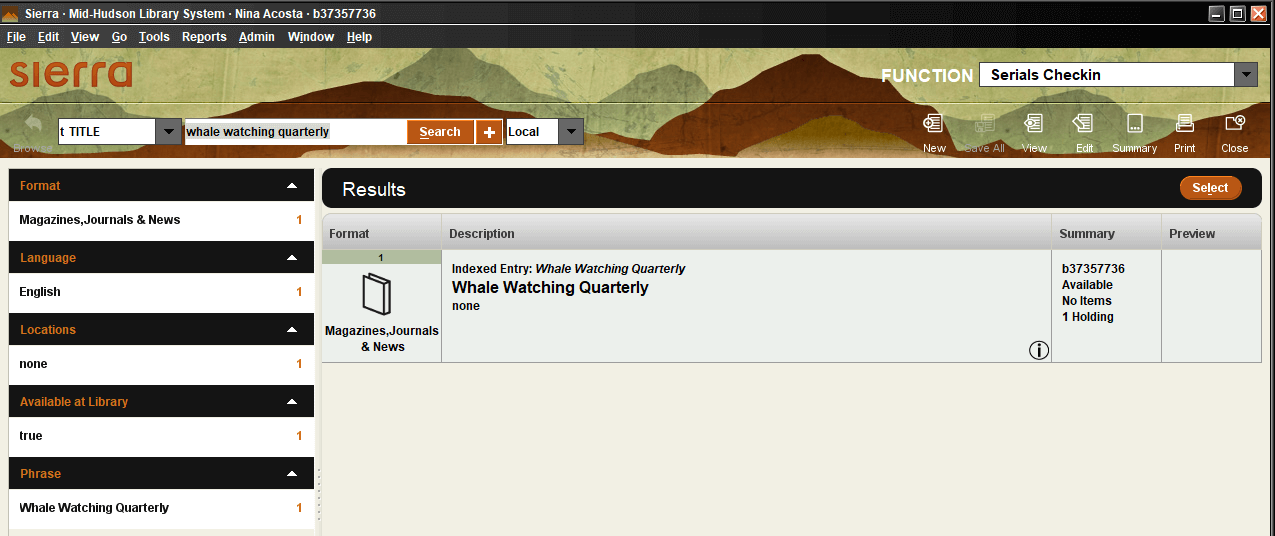
To create a Checkin Card for this title, go to the Bib record for this title –
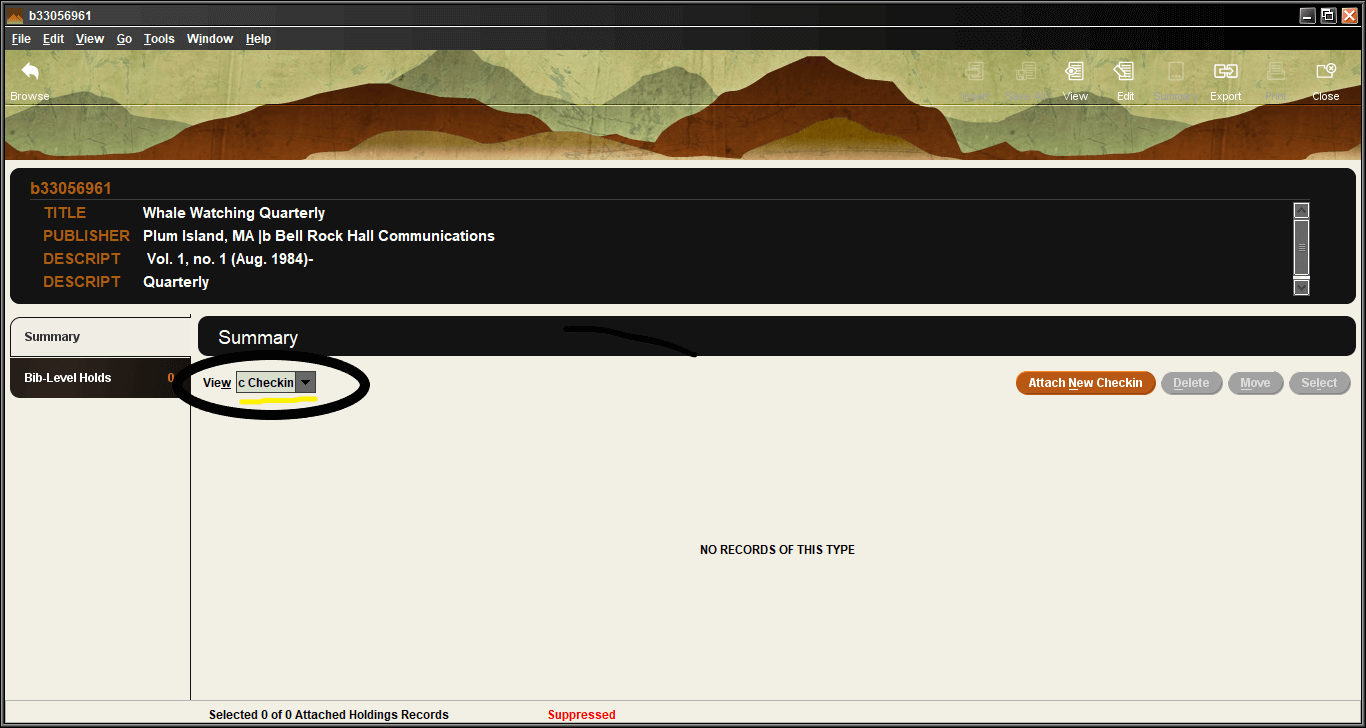
From the Summary tab, change the View to Checkin and click on the Attach New Checkin button.
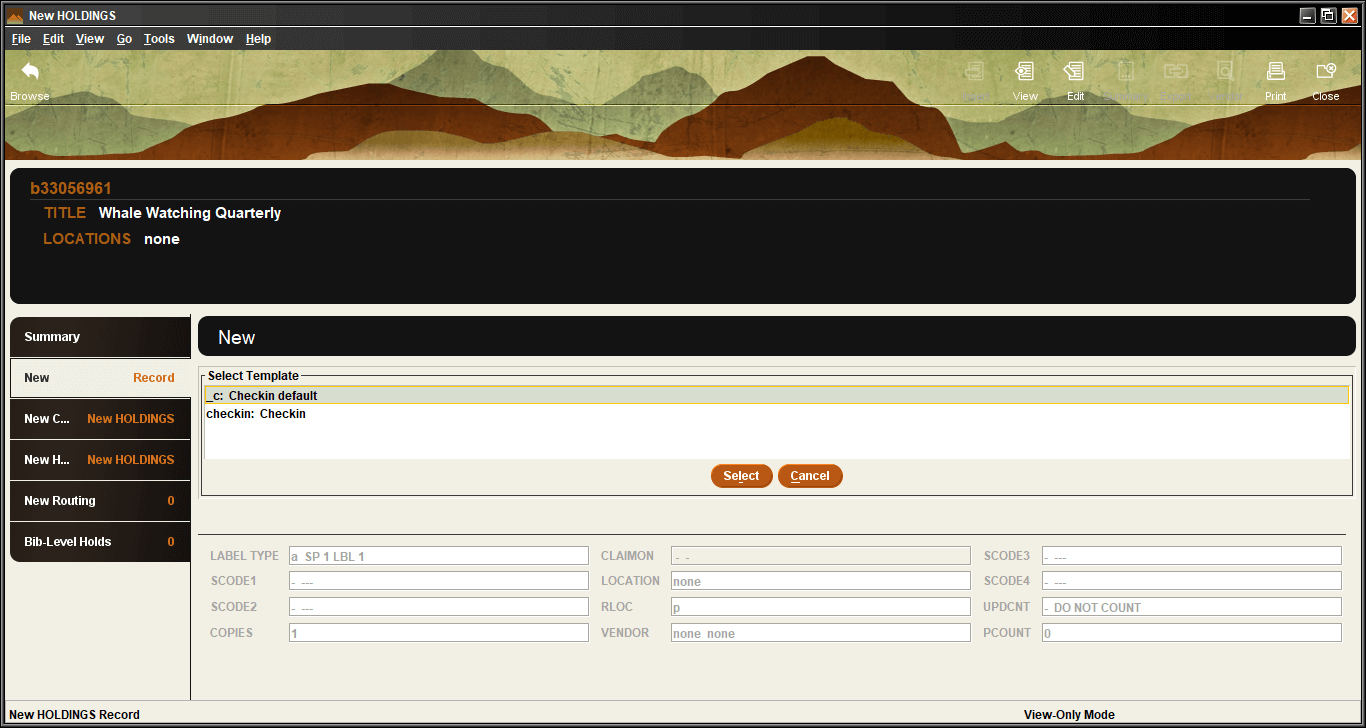
If you are prompted for a template, select the option “checkin – checkin”.
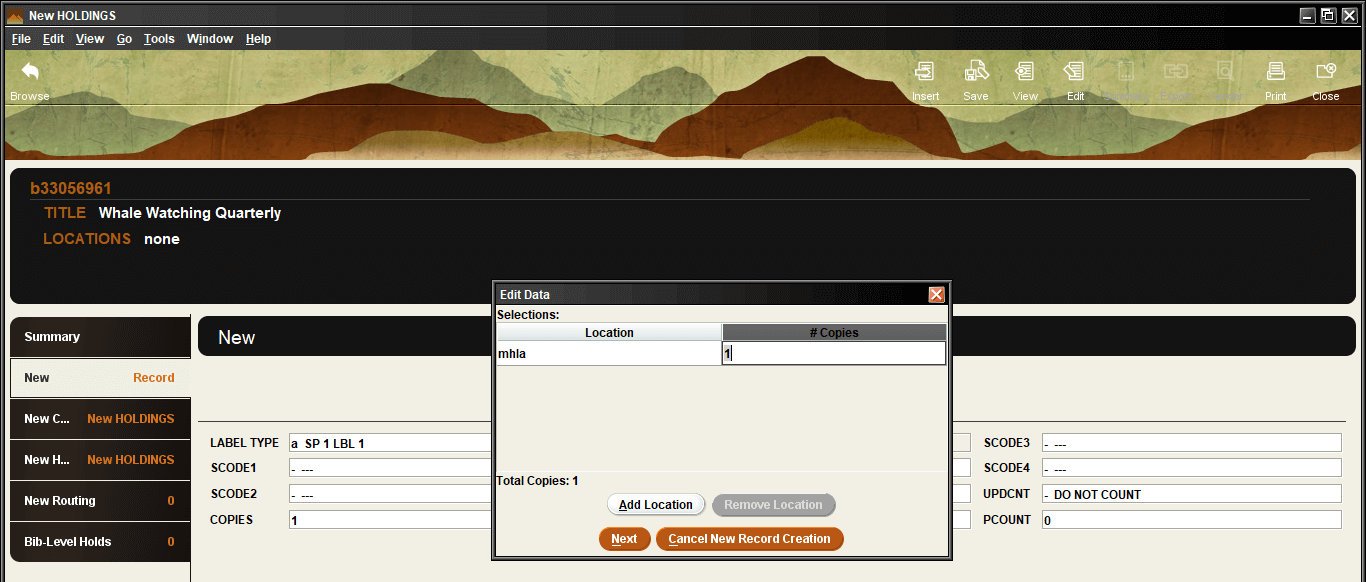
The Sierra template will prompt you for fields that you need to fill in. Put your 4 letter code into the location field, and keep the number of copies at 1, unless your library expects to receive multiple copies of each issue. In the “LIB HAS” field insert the text of your holdings statement — the number of back issues that your library retains.
Next, you will be prompted to fill in the elements of the Create Card box.