Once you have Checked in the last box on your checkin card, you will get a message asking you if you would like to change the status to Filled.
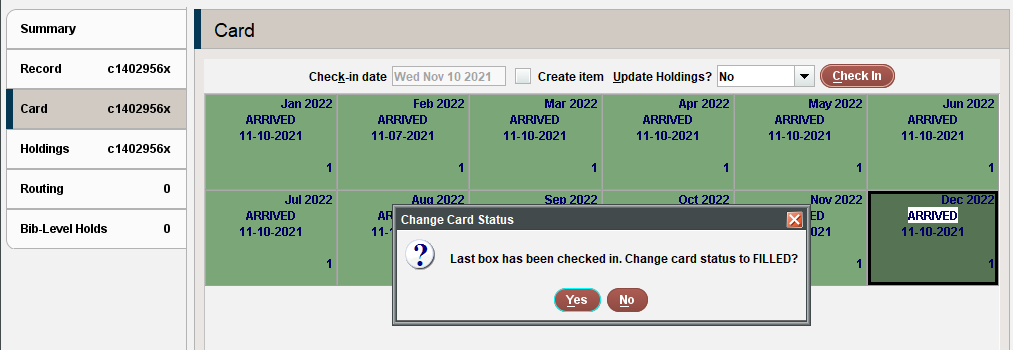
If you plan to continue your subscription, you should select “No”.
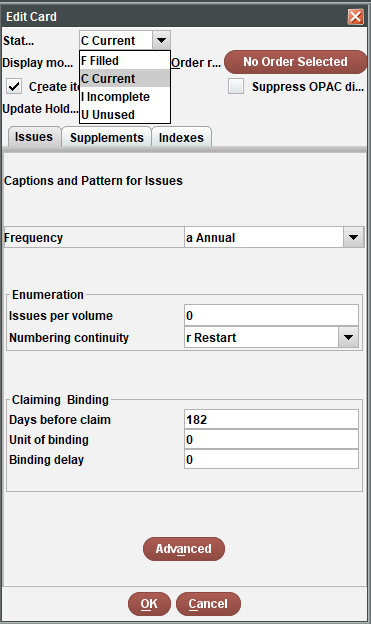
If you had accidentally marked it as filled, you can Right click and go to Card Menu > Edit Card to change the status dropdown back to “Current”.
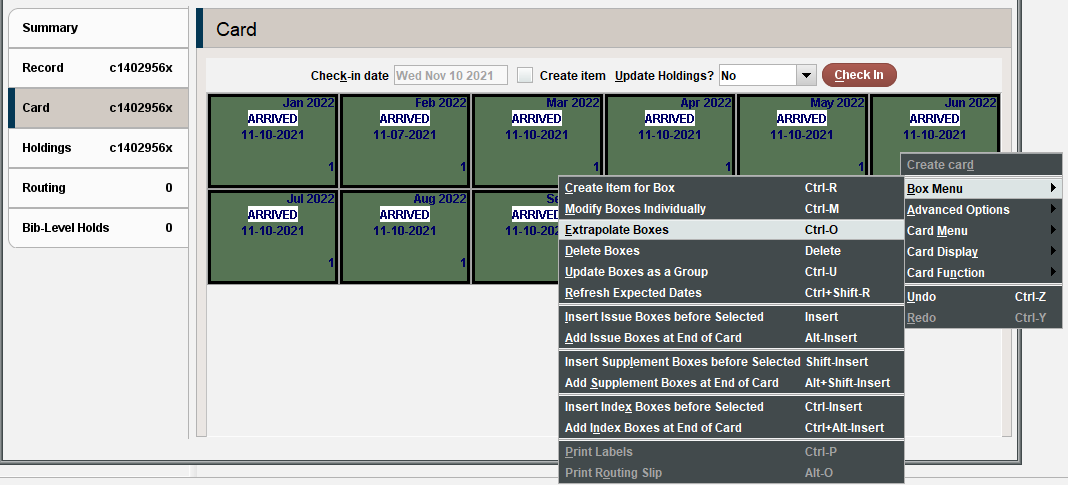
To extrapolate your boxes for the upcoming year, click and drag to select the previous year of checkin boxes. Then Right Click, and Select Box Menu > Extrapolate boxes.
You will see a window asking you to confirm the details. You can leave the number of times to extrapolate at 1. If necessary, you can make changes to the starting cover date of the new issues. Then click OK.
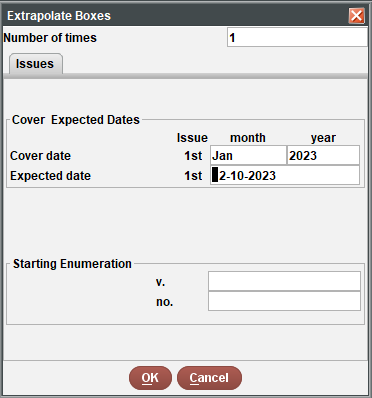
The system will generate a new set of boxes for the upcoming year.
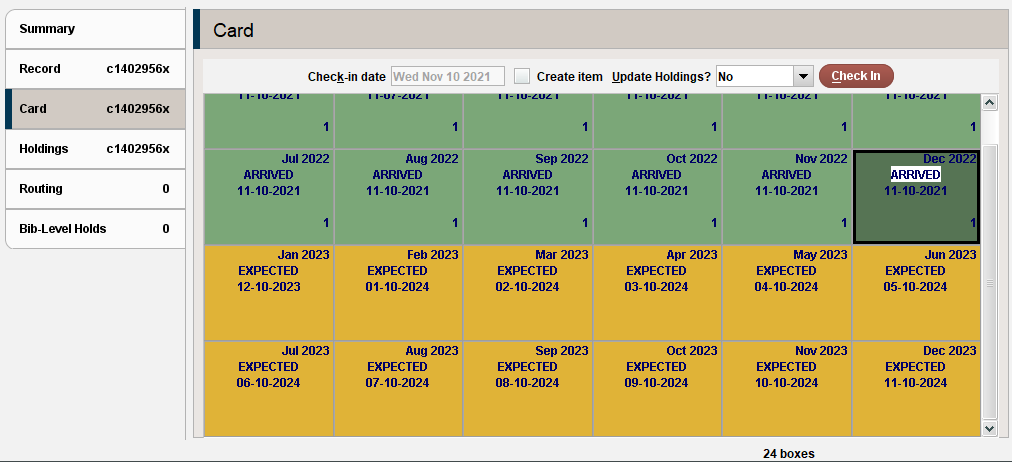
There is a limit of 120 boxes that can be on one checkin card. If you try to add more than that, you will get an error. Once you have no further use for the old boxes, you can delete them.
Click and drag to highlight the old issues, then press the delete key on your keyboard. Confirm the deletion.
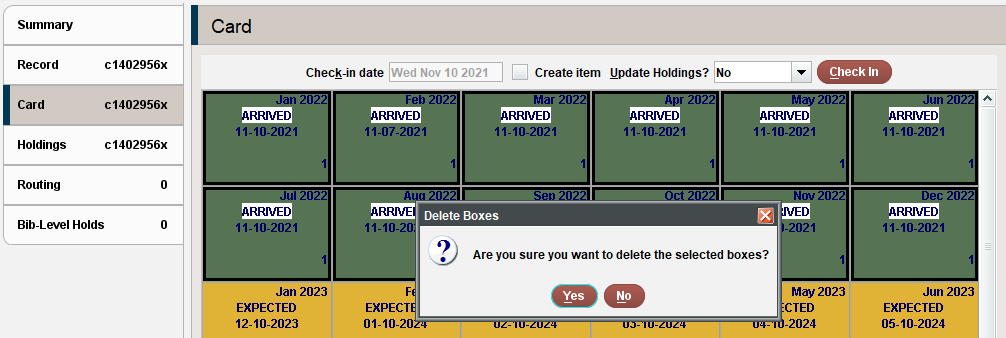
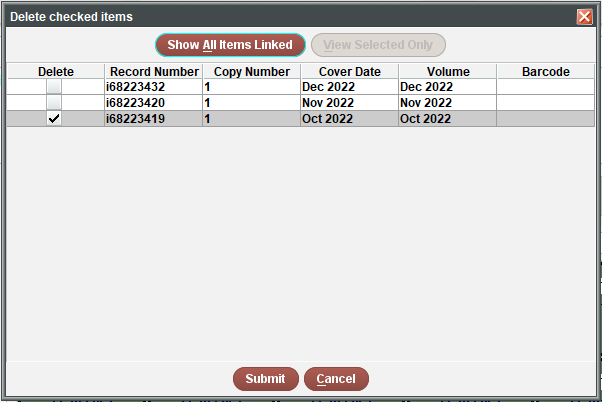
If there are any attached issues linked to the checkin boxes, the delete checked items box will appear. If you want to retain the linked issues, you can uncheck the box next to each item you would like to retain. If you do want to delete issues as well, you can leave the items checked and they will be removed once you submit.