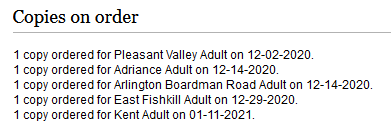
If you purchase materials from a vendor that supplies order records (Brodart, Ingram, Midwest Tape, and more) the MHLS cataloging department will load your orders into the catalog. The on order records will display in the catalog showing the number of copies your library has purchased.
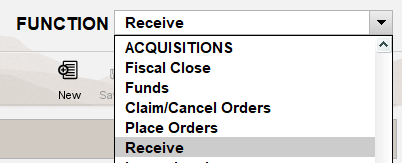
When the items arrive at your library, you will need to use the Receive function under the Acquisitions menu in Sierra to receive your orders to attach your item to the record.
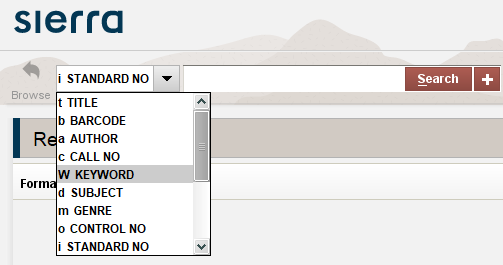
The Receive function looks and works almost exactly the same as the Search/Holds screen that you are probably familiar with already. You can search for your item by ISBN, keyword, Title or Author.
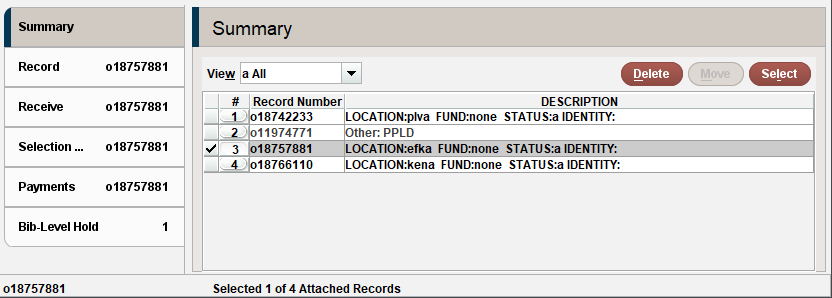
When you find the record and open it, you should see a series of order records. Select the order that matches your library’s location, then click the Receive tab to the left. (If you accidentally receive another library’s order, or it seems like your order was received by someone else, please contact the MHLS cataloging department at cataloging@midhudson.org)
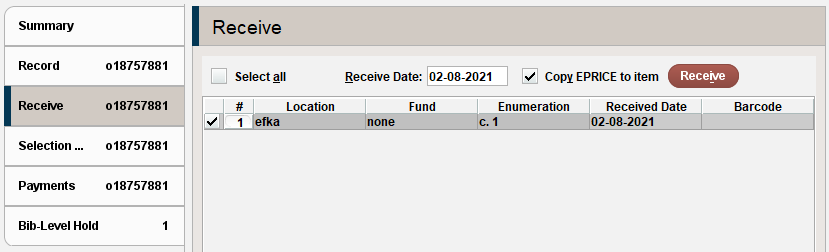
The receive tab will show the single order record you selected. If you click on the barcode field, you can scan or type the barcode you would like to assign to the item. If you would like to import the estimated price from the on order record into the price field for your item record, leave the checkbox for Copy EPRICE to item checked off. Click the Receive button, and Sierra will start the item record prompts. (see Adding an item record if you would like help with this)
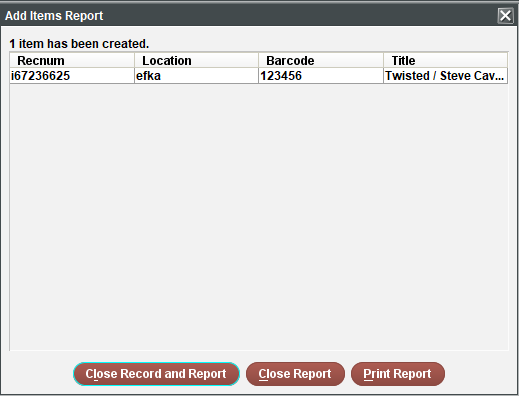
When you are done adding your items, you will see an Add Items Report with 3 button options:
- Close Record and Report closes the entire record and takes you back to the search screen for the next record.
- Close Report will close just the pop up and leave the rest of the record open if you want to further edit the record or attach more items.
- Print Report will print out the list of items if you would like to have a copy of what you have entered. This is typically not necessary.