If you find a matching record in the catalog, you can attach your item to that record, by clicking on the “attach new item” button.
This will start a series of prompts to fill in. If you did not find a matching record in the catalog, please create a brief bib record first.
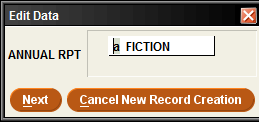
Annual Report: Code used to gather statistics for your library’s annual report.
Item Type: This code is responsible for assigning proper loan rules as items are checked out.
Location: 3 letter location code for your library (see Terminal numbers and Location Codes) followed by “a” for adult, “j” for juvenile, or “y” for young adult.
Price: The price of the item, used for a replacement cost if it is lost or damaged. The Directors Association recommends using the price paid for the item instead of the cover price.
Barcode: Scan or type the barcode assigned by your library.
Call#: Assigned by your library so your patrons can find the item on your shelf.
Entered by: Fill in your library’s location code along with your initials.
Internal Note: For use by the owning library. Viewable only by staff – does not appear in the online catalog.
Once the prompts have been completed, you can add additional fields by clicking the “Insert” button. A new field will pop up, and you can change the dropdown menu to the field you want to add.
Volume: included on serial records and multi-part sets that circulate separately, such as encyclopedias or The Great Courses sets. Do not add series numbering here if each title in the series has its own record.
Message: pops up on the screen in Sierra every time the item is scanned. For multi-part items, use to indicate number of pieces.
Ex: “Check for three discs”
This will prompt library staff to check for everything that should be included before checking it in. If an item does not include this message, other libraries will not be held responsible if they check in an item with missing parts.
Once an item is ready to circulate, scan the barcode in in the “Check In” function. This will fill any outstanding holds.