Once you have issues predicted for a periodical, you can check them in using Sierra.
Highlight the issue you want to check in and click on the Check In button.
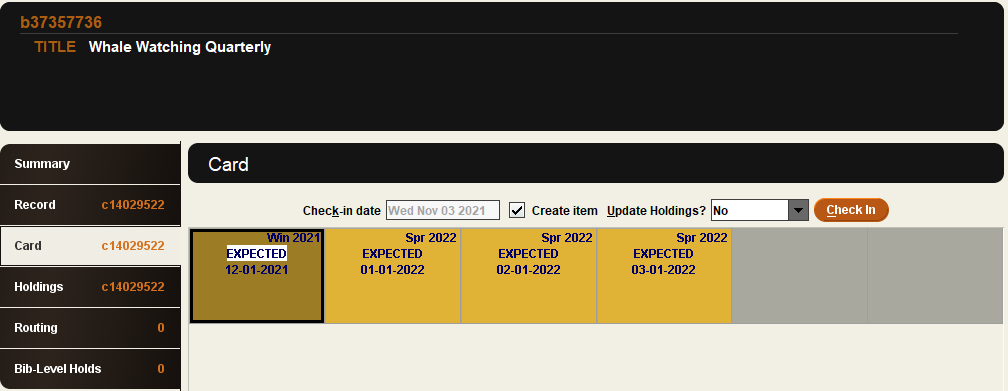
The issue will be changed from ‘Expected’ to ‘Arrived’ and the date will reflect when you checked in the issue.
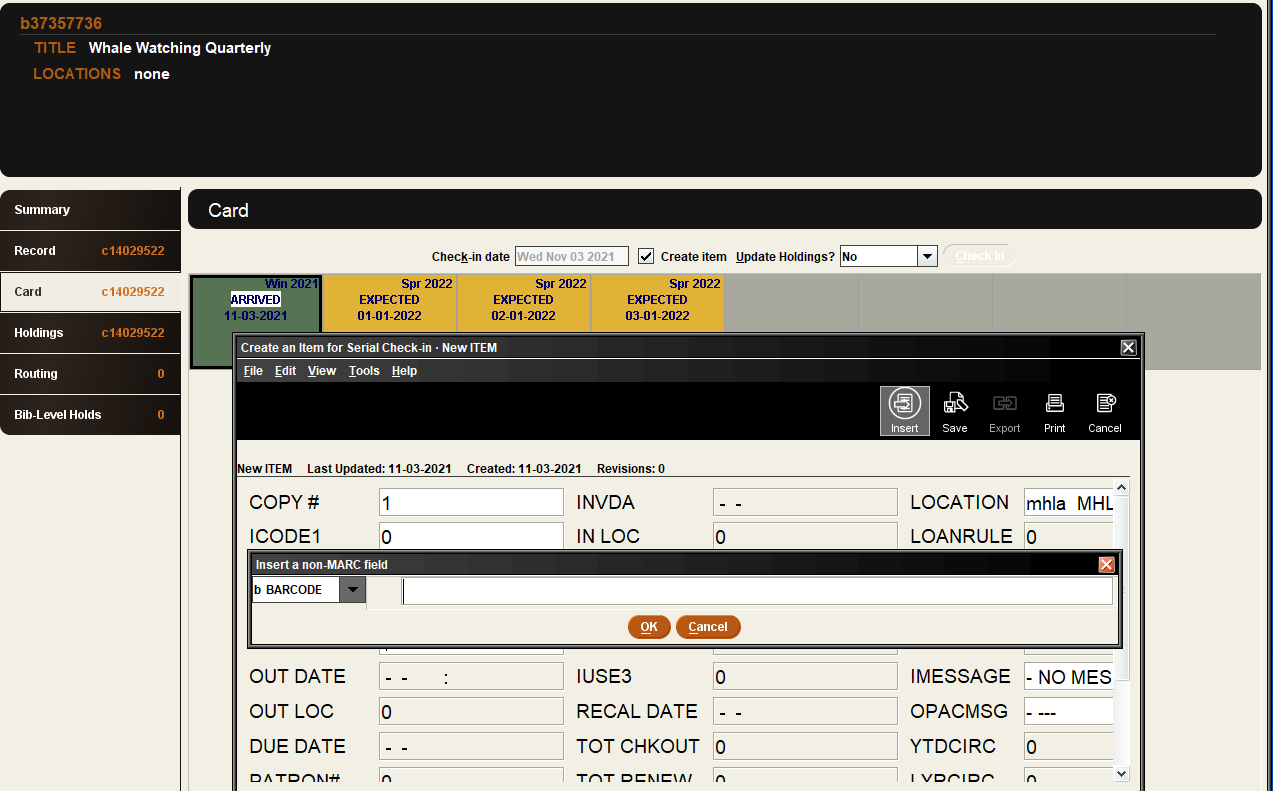
If the Create item box is checked, Sierra will give you the same item record prompts that you typically see when you attach a new item. The Serials module will automatically fill in the Volume field with the cover date from the box you checked in.
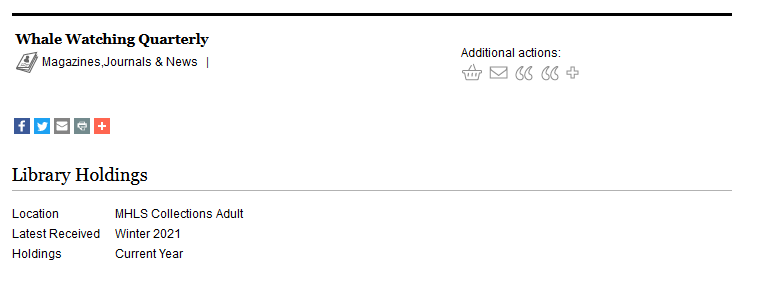
When you have Checked In issues, the OPAC display will update the display to include your Latest Received issue.