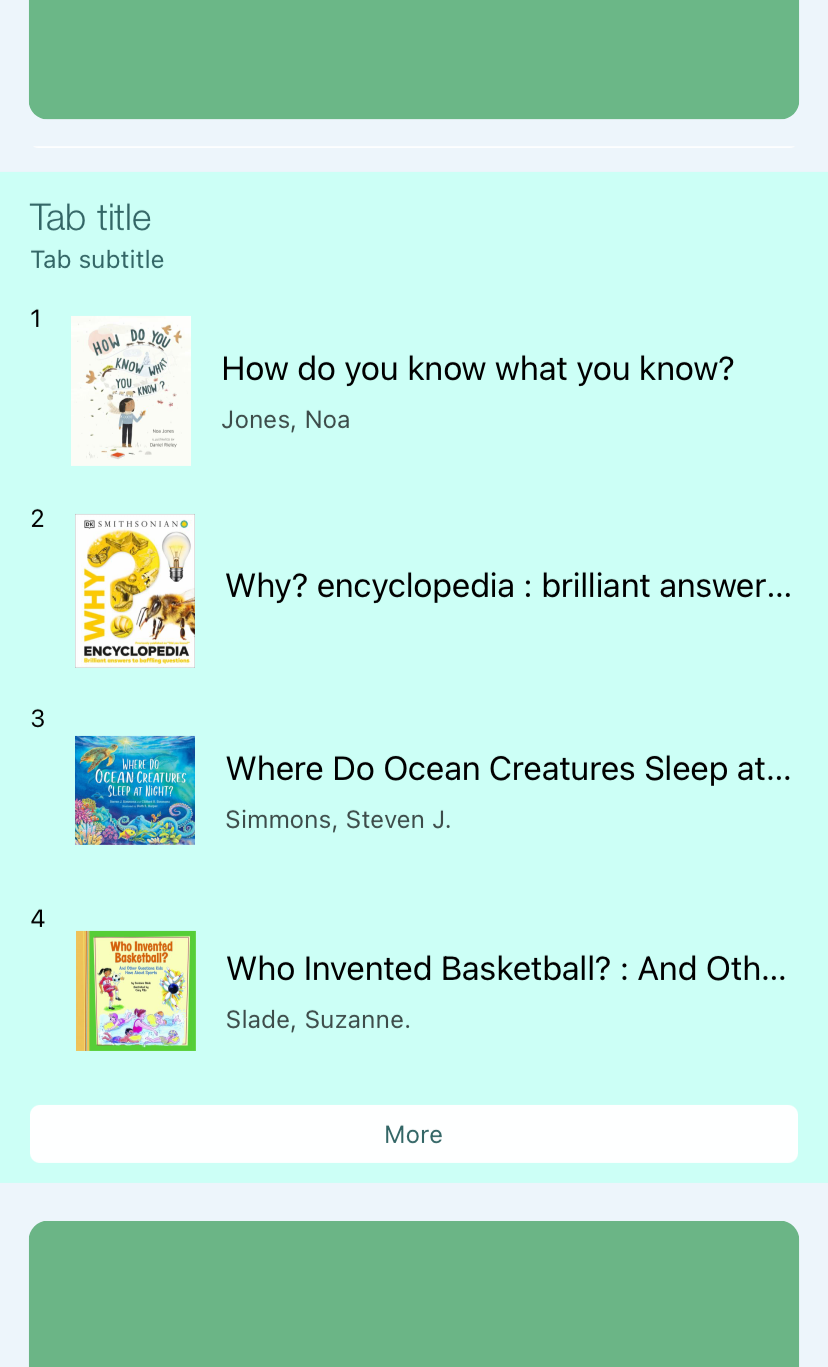

App Carousels

“Carousels” are the app’s word for showcases, library lists, etc. – visually appealing, interactive recommendations of library materials.

Our app has the ability to display both custom lists curated by library staff and various New York Times bestseller lists that update automatically. The bestseller carousels will only display titles that are also in the library catalog.

You will need:

  • Access to the app’s content management system (CMS). Contact techsupport@midhudson.org if you have forgotten the URL or your login information.
  • For custom lists, a list of titles (in the MHLS catalog) in one of three possible formats:
    • ISBNs – separated by commas with no spaces.
    • Sierra bibliographic record ID numbers – separated by commas with no spaces.
    • Vega Discover Showcase ID (recommended) – how to:
      1. Find the showcase URL. You can open any showcase on the catalog with “View All” to get to its unique URL. 
      2. Copy everything after “showcase/”
        Screenshot of a URL with the characters after the final forward slash highlighted.

Table of Contents

Step 1: Feeds

The feeds are the lists. You can have up to 10 at one time.

  1. Log into the CMS, go to MOBILE APPS, and select your app.
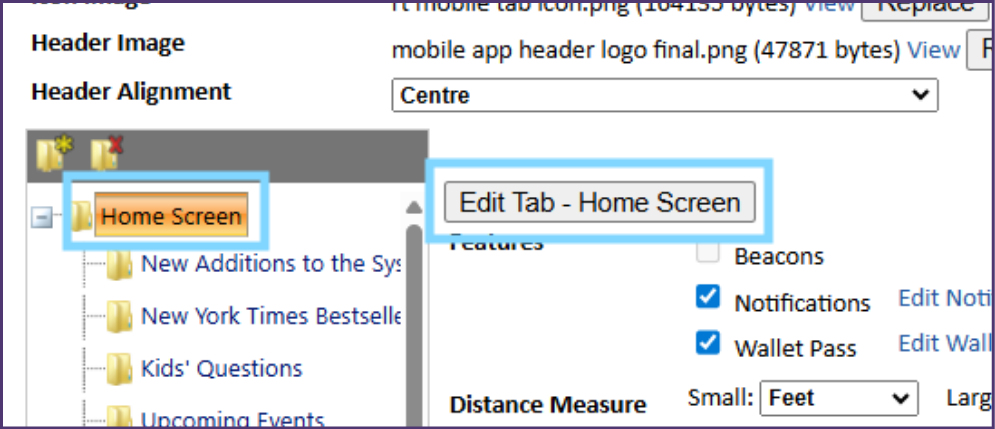
  2. Select the Home Screen folder. Screenshot of the patron app CMS with the Home Screen folder and Edit Tab - Home Screen button both highlighted in blue.
  3. Click Edit Tab – Home Screen.
  4. Scroll down to Homescreen Carousel.
  5. Select Enabled
  6. Optional – select the box to enable a ‘classic‘ carousel. A classic carousel appears at the top of the home screen, whereas carousel tabs can be placed lower down. It has more limited configurations than carousel tabs but does not require step 2 below. You can use either or both classic and tabs. Screenshot of the patron app CMS with the Homescreen Carousel "Enabled" and "Autoscroll" checkboxes highlighted in blue. They are labelled "All carousels." Other elements are labelled "classic carousel only."
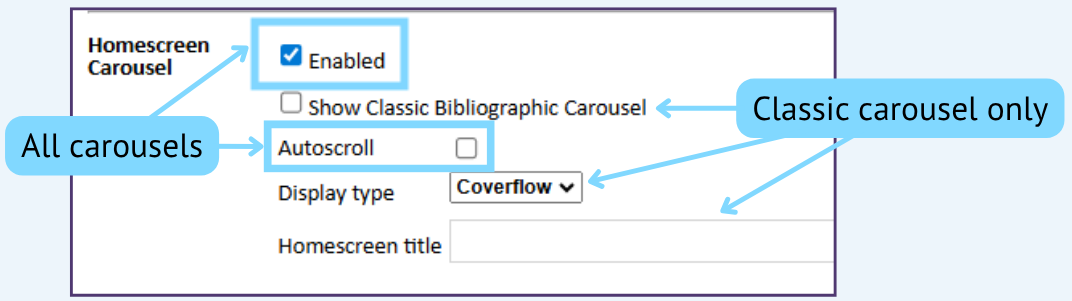
  7. Choose whether carousels will autoscroll or remain still by selecting/deselecting Autoscroll.
  8. You can ignore Display type and Homescreen title if not using the classic style.

Classic Bibliographic Carousel

(Optional – skip to Feed Contents if only using tabs)

For a single simple and easy showcase, select Show Classic Bibliographic Carousel. Note, it can only be a staff list and is incompatible with the New York Times Bestseller types. The classic carousel displays in a single file, with a title and a button to see all lists. It is always at the top of the home screen, under the search bar and above the pinned tab if a tab is pinned.

  1. Select Show Classic Bibliographic Carousel.
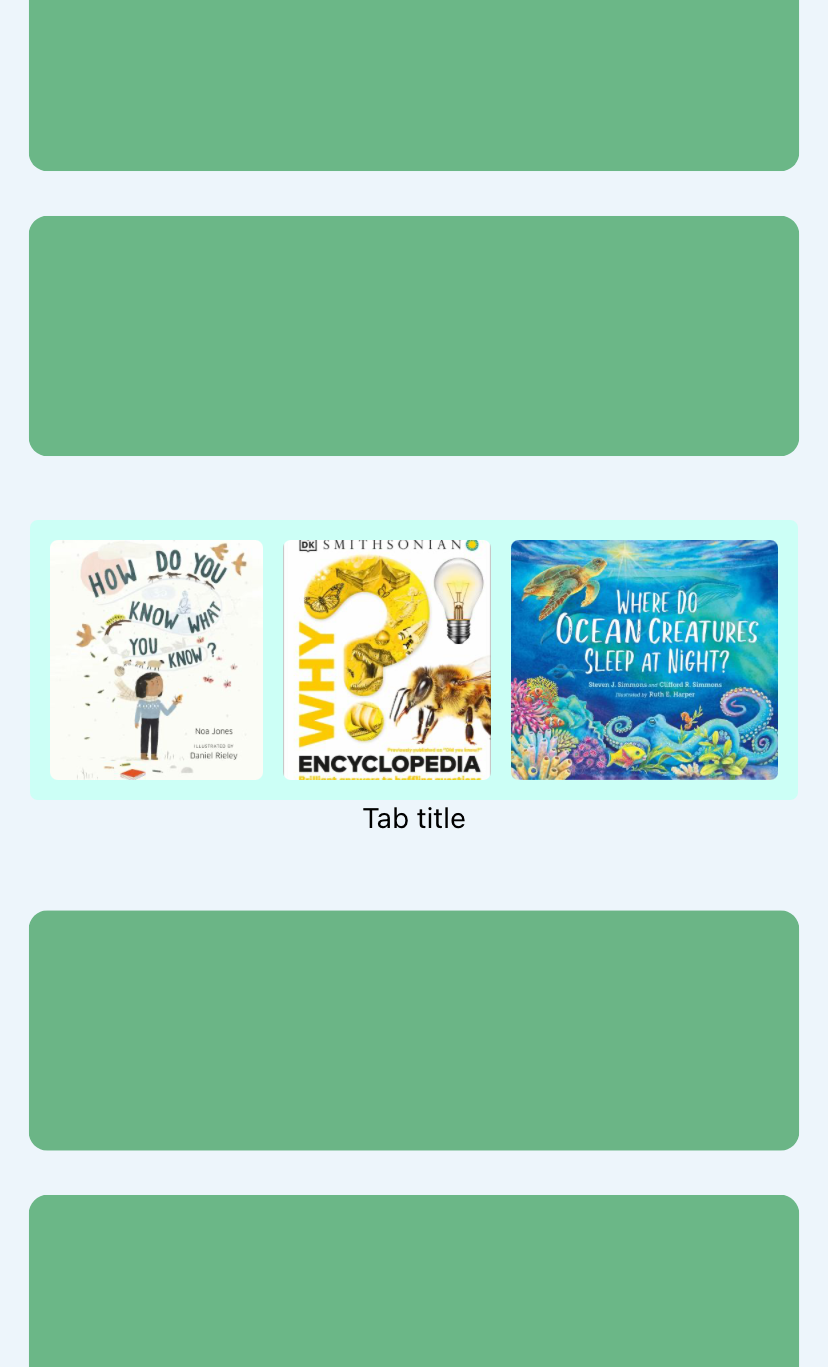
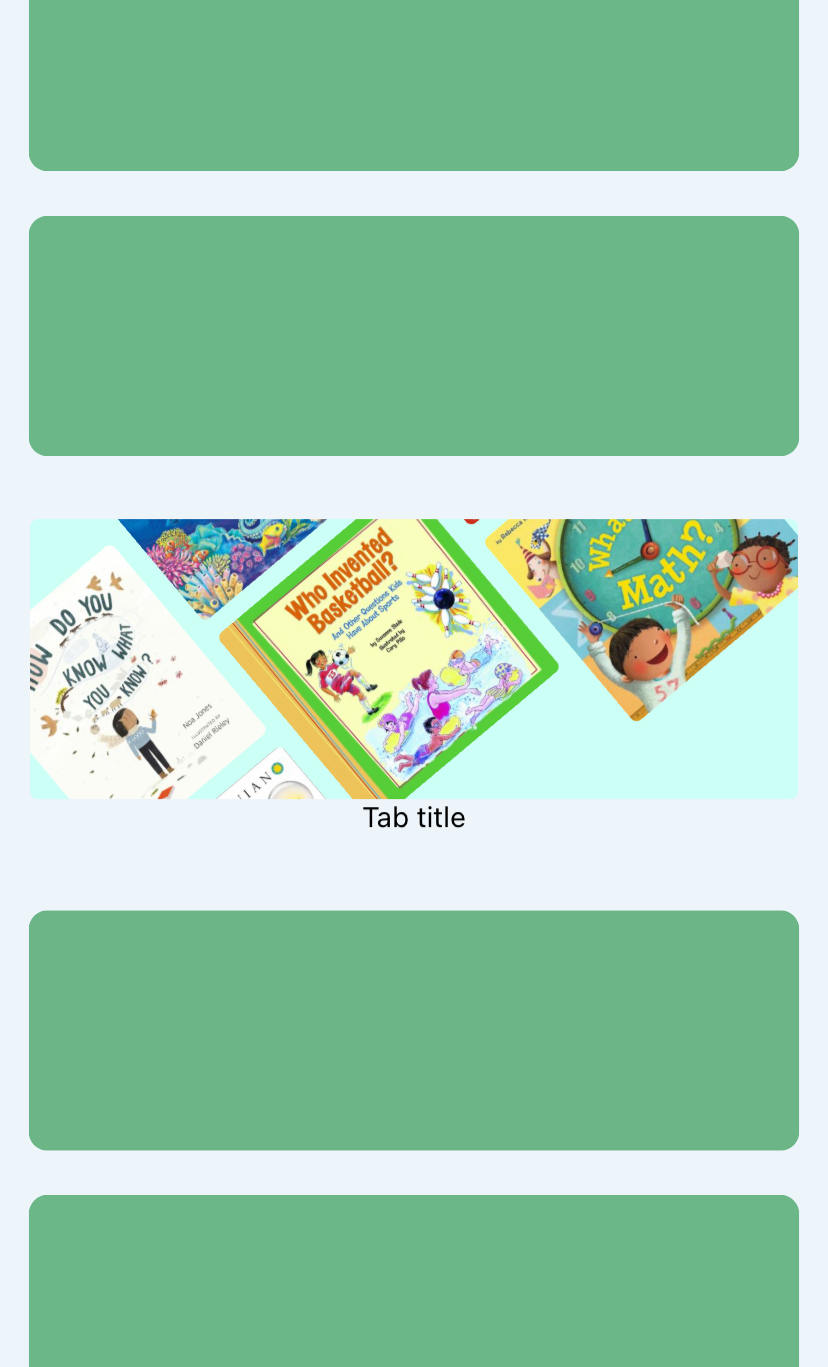
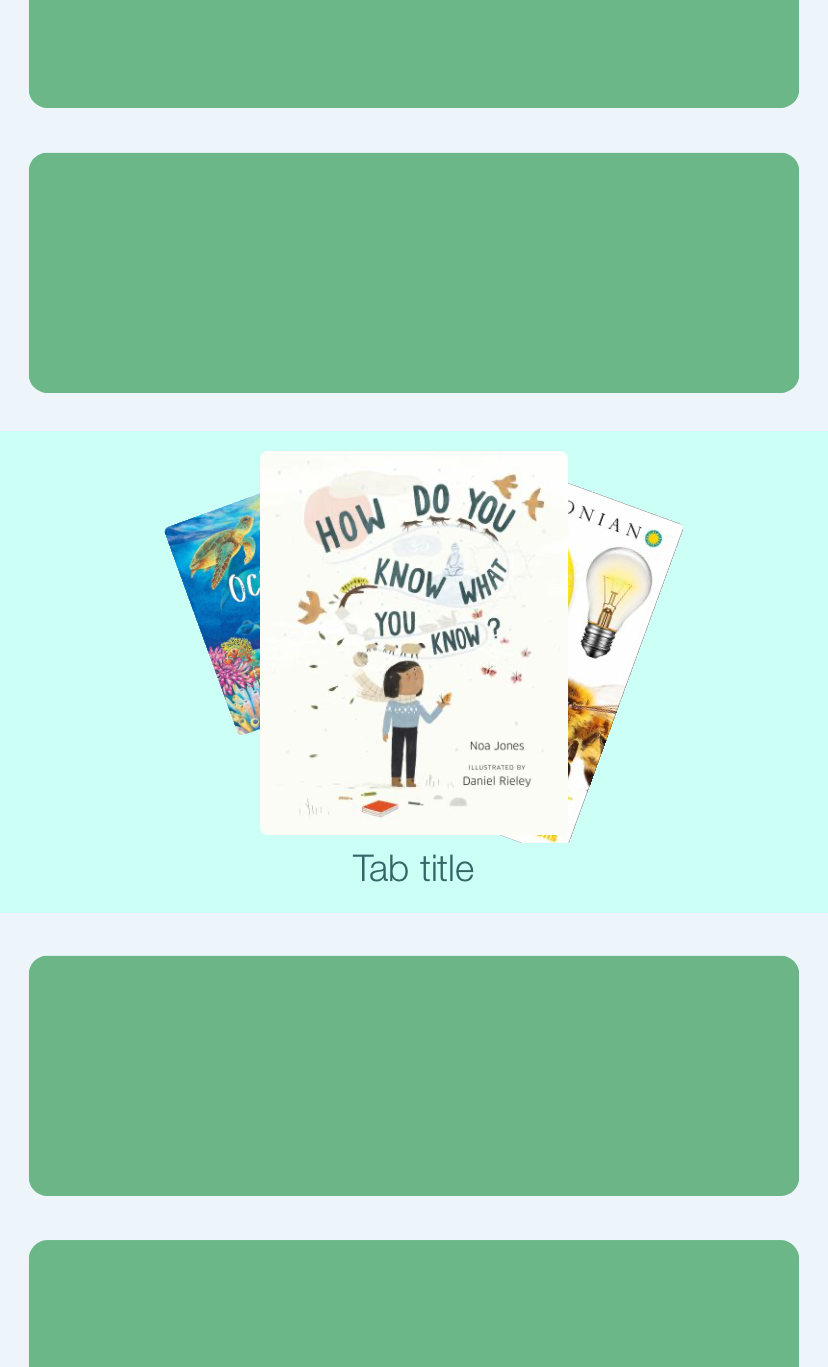
  2. Display type: Slide or Coverflow – Slide shows every cover the same size. Coverflow will make the center image slightly larger and angle the others for a 3D effect.
  3. Homescreen title: this title will appear on the home screen above the carousel – unless you give Feed 1 a title, in which case the Feed 1 title will supersede the Homescreen title.
  4. Continue to Feed Contents and configure Feed 1 only. No need to complete Step 2 (Carousel Tabs). It will appear automatically at the top of the home screen.

Feed Contents

  1. Scroll to the Feeds numbered 1-10. In the page of all lists, they will display in this order, with Feed 1 at the top of the page. Don’t leave blank feeds in between occupied ones – this may cause the higher-numbered feeds not to display.
  2. Title: will display on full list view and list of all lists. Without a Feed Title, a list will be named just “List.”
  3. Type: choose the type of data that you will be entering (ISBNs, bib IDs, showcase ID, or New York Times list).
  4. Enter items. For Bibliographic IDs and ISBNs, enter them separated by commas with no spaces. For a Vega Discover showcase, enter just the ID copied from the URL. For the New York Times, see the codes in the box below. Vega example: Screenshot of Feed 1 filled out with a Vega Showcase ID as the only data in the "Items" field.

  5. Scroll to the bottom of the page and click Save.
New York Times Bestsellers

In the Items field, enter the identifier for the specific New York Times Best Sellers list you want displayed in the app. These identifiers correspond to the category being pulled from the New York Times API. You have the following options:

  • advice-how-to-and-miscellaneous — Advice, How-To & Miscellaneous
  • audio-advice-how-to-and-miscellaneous — Audio Advice, How-To & Miscellaneous
  • audio-childrens — Audio Children’s
  • audio-fiction — Audio Fiction
  • audio-nonfiction — Audio Nonfiction
  • business-books — Business
  • childrens-middle-grade-hardcover — Children’s Middle Grade Hardcover
  • combined-print-and-e-book-fiction — Combined Print & E-Book Fiction
  • combined-print-and-e-book-nonfiction — Combined Print & E-Book Nonfiction
  • graphic-books-and-manga — Graphic Books & Manga
  • hardcover-fiction — Hardcover Fiction
  • hardcover-nonfiction — Hardcover Nonfiction
  • middle-grade-paperback-monthly — Middle Grade Paperback
  • paperback-nonfiction-monthly — Paperback Nonfiction
  • picture-books — Children’s Picture Books
  • series-books — Children’s & Young Adult Series
  • trade-fiction-paperback — Paperback Trade Fiction
  • young-adult-hardcover — Young Adult Hardcover
  • young-adult-paperback-monthly — Young Adult Paperback

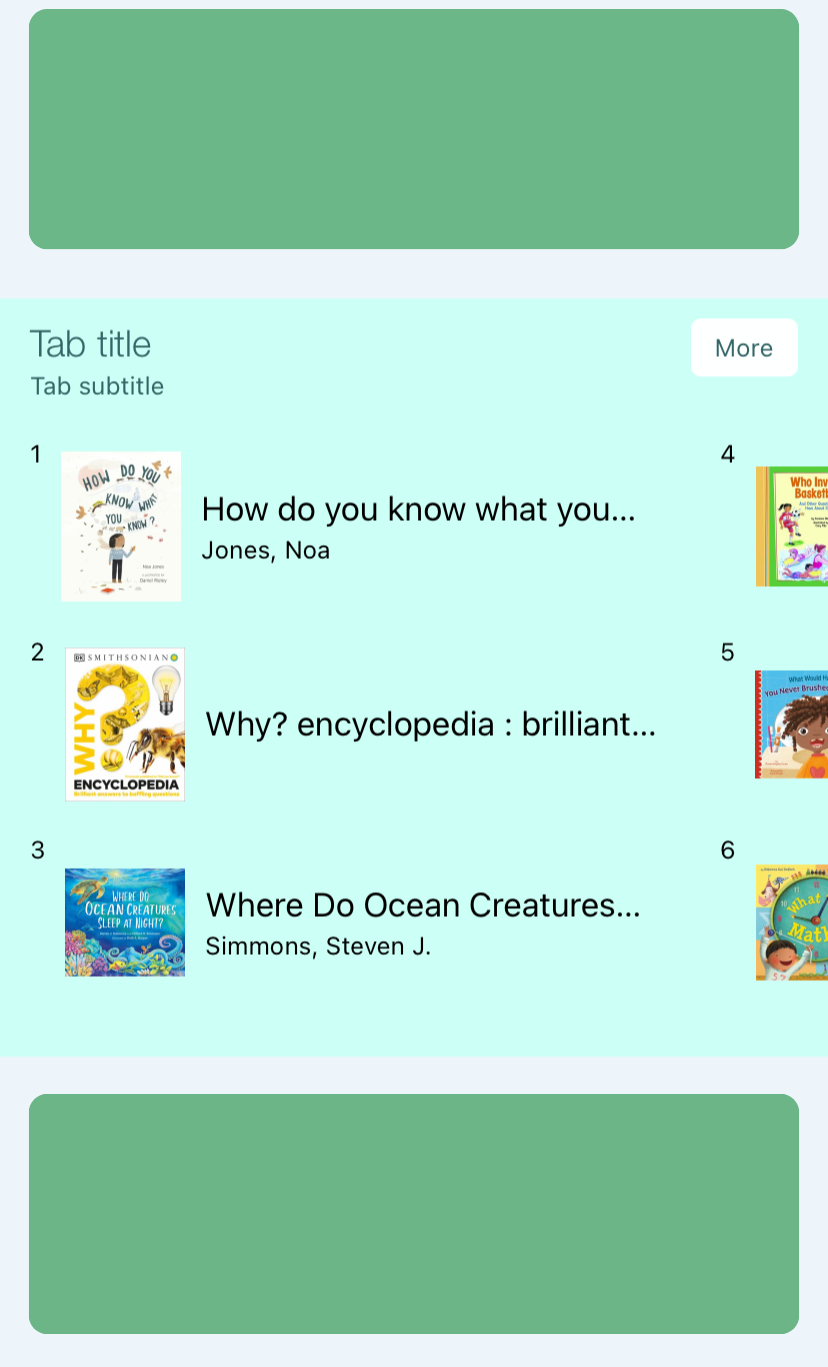
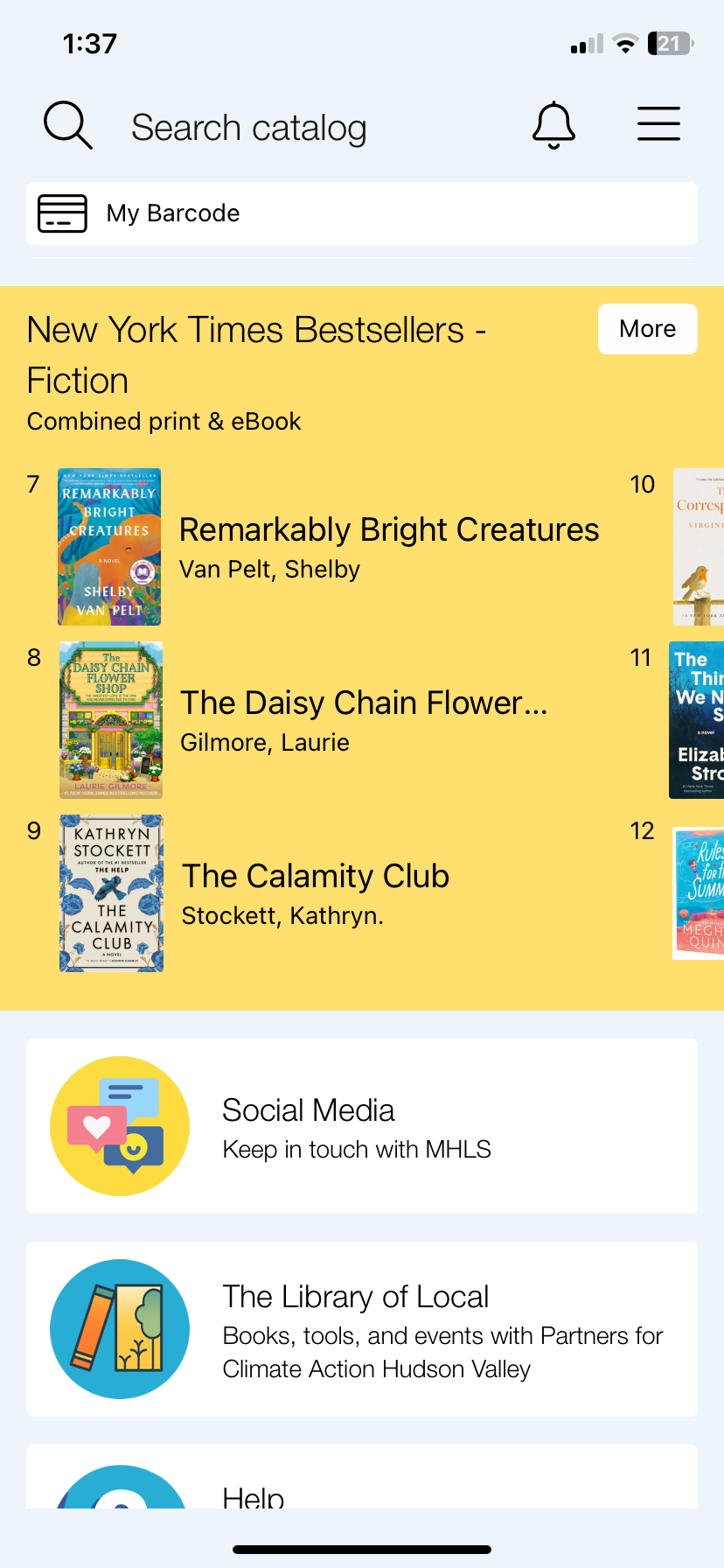
In this example, the Combined Print & E-Book Fiction list has been inserted as a tab and styled (see below) as a Tall Slider, Ranked.

Step 2: Carousel Tabs

To use a New York Times Bestseller list, have multiple lists, place a list further down the home screen, or to use layouts and backgrounds, you can make Carousel Display tabs.

  1. Enter information in the Feeds (see Step 1).
  2. Make note of the feed number to use for the tab. Screenshot of patron app CMS's new tab icon (a folder with asterisk).
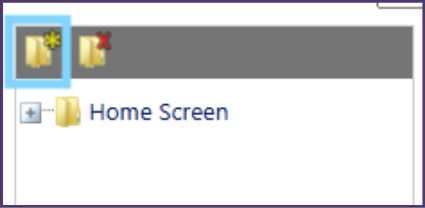
  3. Go back out to your app’s main settings page.
  4. Create a new tab and enter a title. This will show on the home screen (we recommend giving it the same name as the Feed Title). 
  5. Open the Home Screen folder directory, select the tab you just created, and click Edit Tab: [Title].
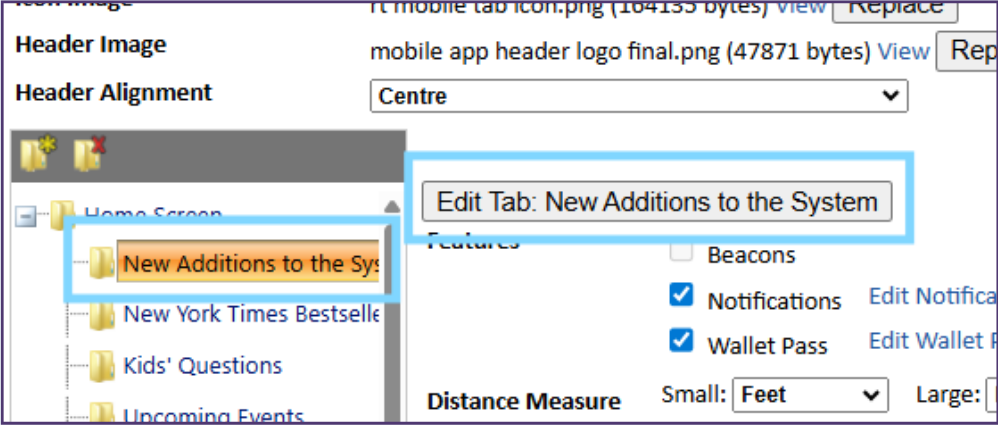
    Screenshot of the patron app CMS with a folder and its corresponding edit button highlighted in blue.

Standard Tab Settings

  • Title: title that will appear with the carousel on the home screen.
  • Subtitle: used in some styles, not others.
    • Note on text colors: choosing a custom colour for the title will also colour the subtitle. Choosing a custom colour for the subtitle will change the text’s background in some styles and is not recommended.
  • Prefix content: will display when you open the full list from the tab, between the Feed Title and the list contents.
  • Not used in carousel tabs:
    • Button image or icon
    • Header image
    • Suffix content

Carousel Tab Settings

  • Scroll to Tab Type. In the first box, choose Carousel Display – only available on the 2025 app.
  • Standard and other options: leave on Standard
  • Style: see below for a visual guide to different styles.
  • Feed ID: enter the number of the Feed to display on this tab.
  • Background – optional: choose a background color for this section of the home screen.
  • Link to all:
    • If selected, the list will have a “More >” button to open the page of all lists, from which you can see any list by selecting its “More” button.
    • If not selected, the list will have a “More” button and open directly to the full list with no way to see other lists.
  • Scroll to the bottom and click Save. It may take a couple minutes to populate in the app.

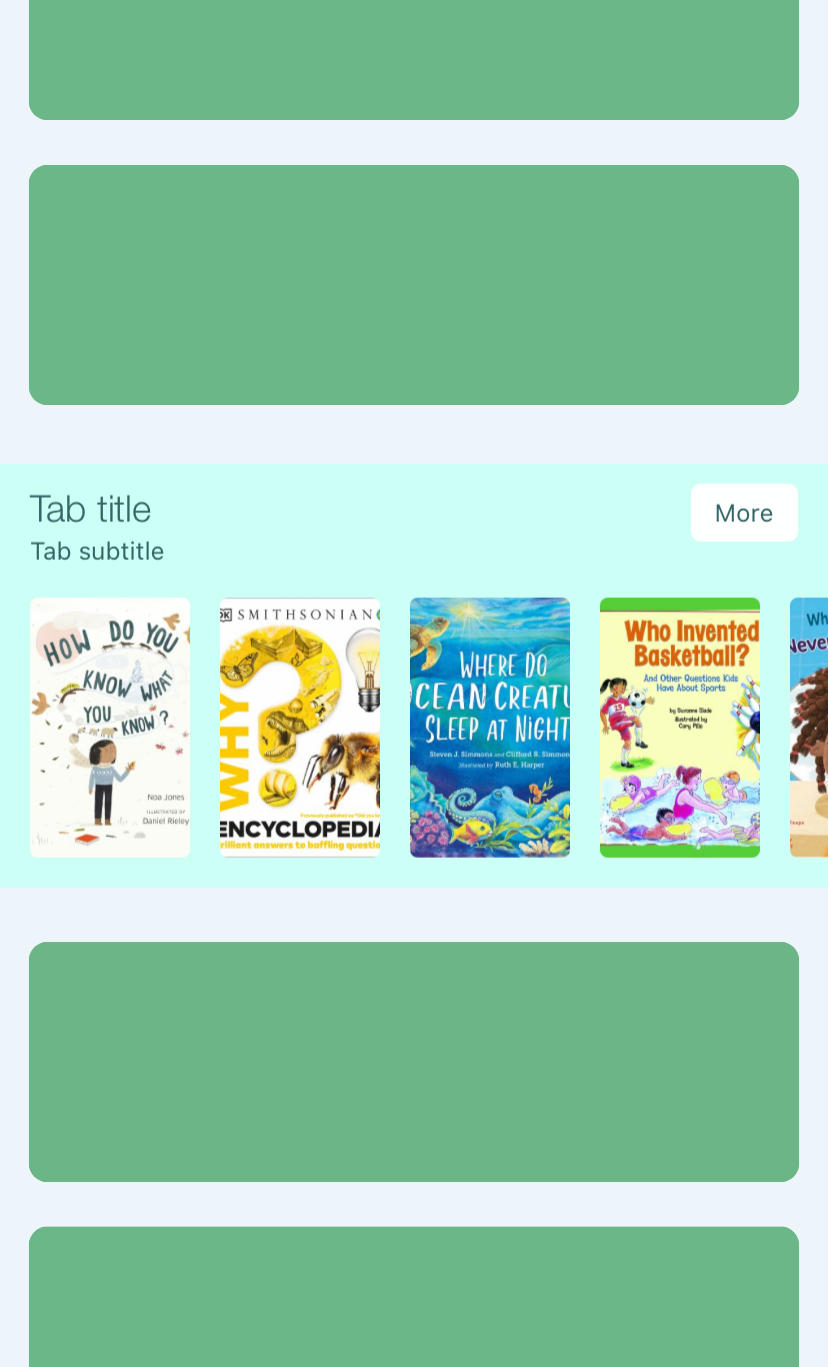
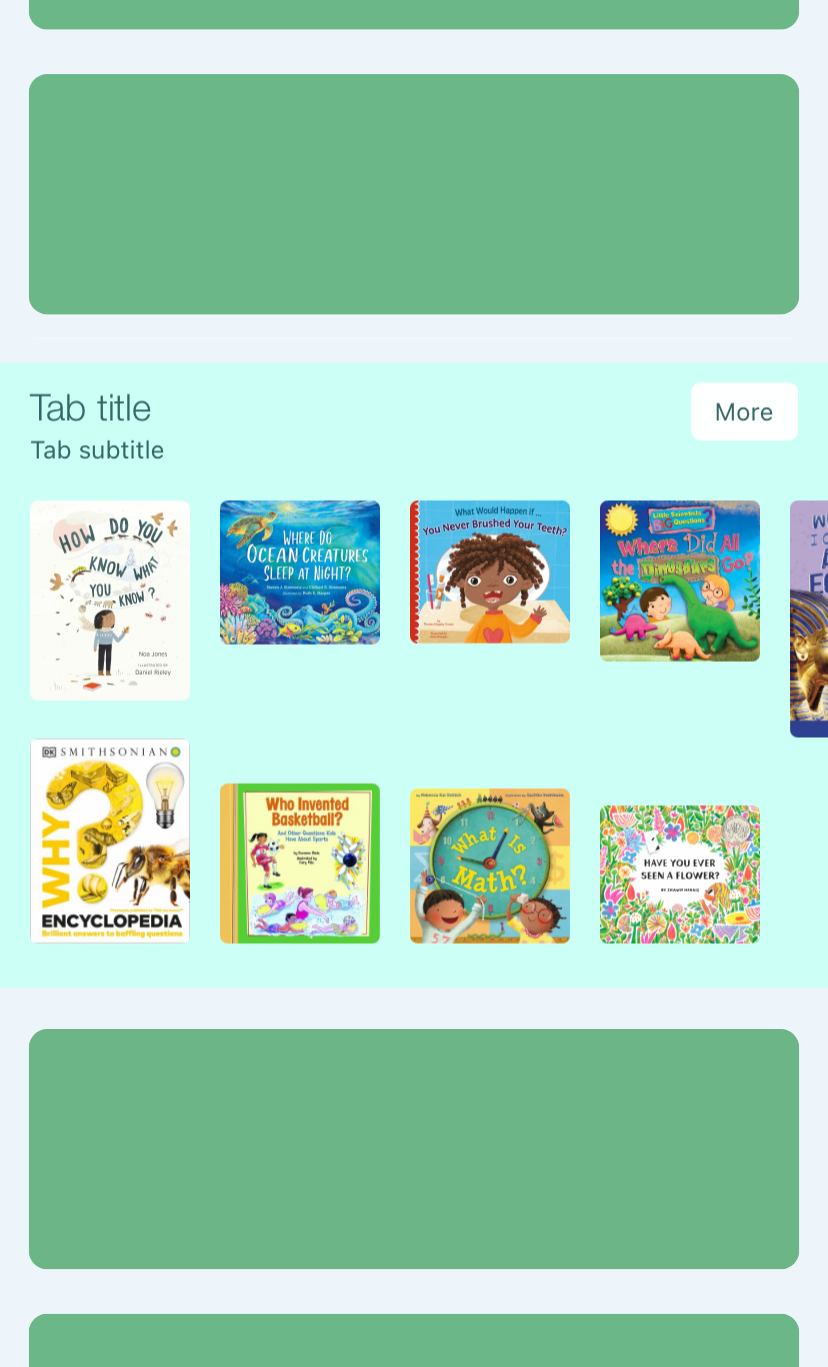
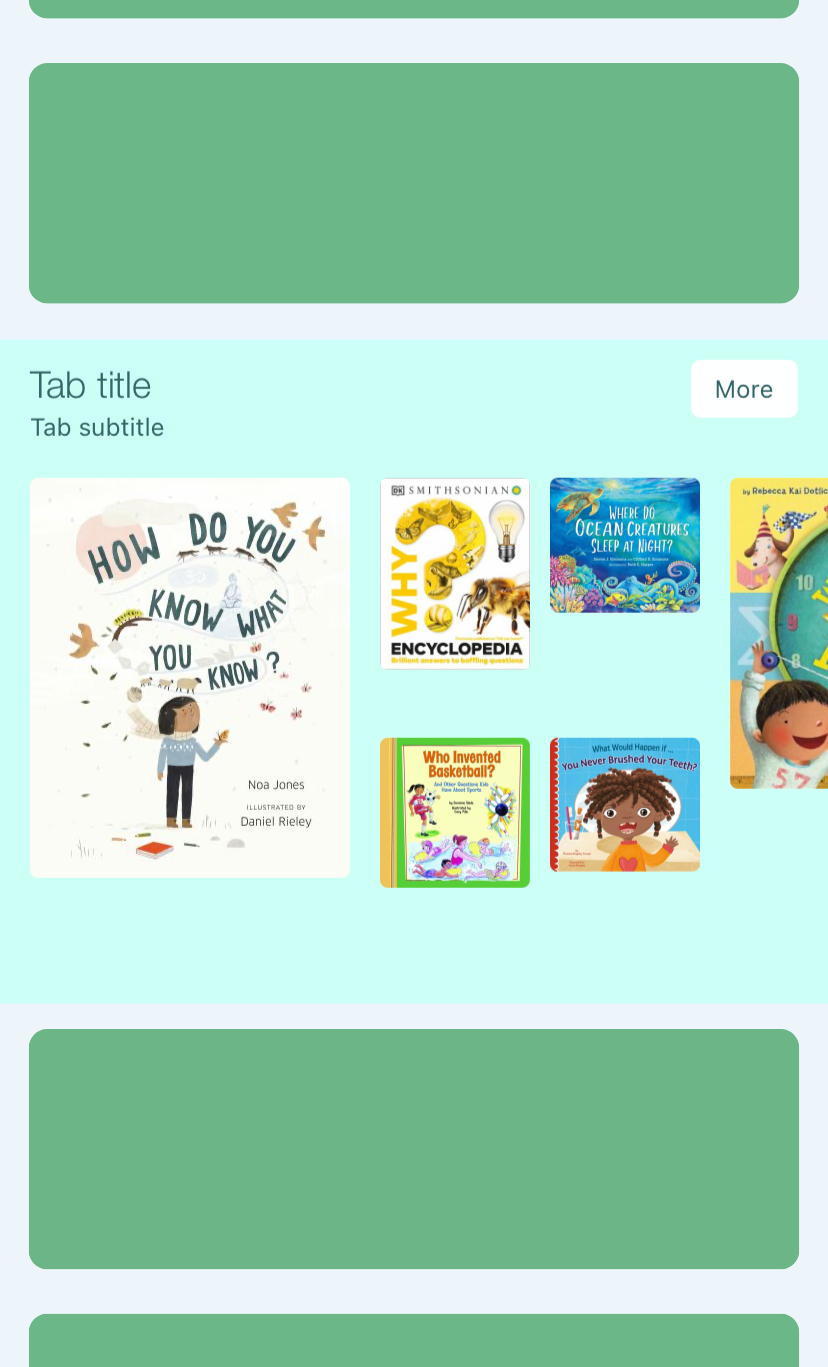
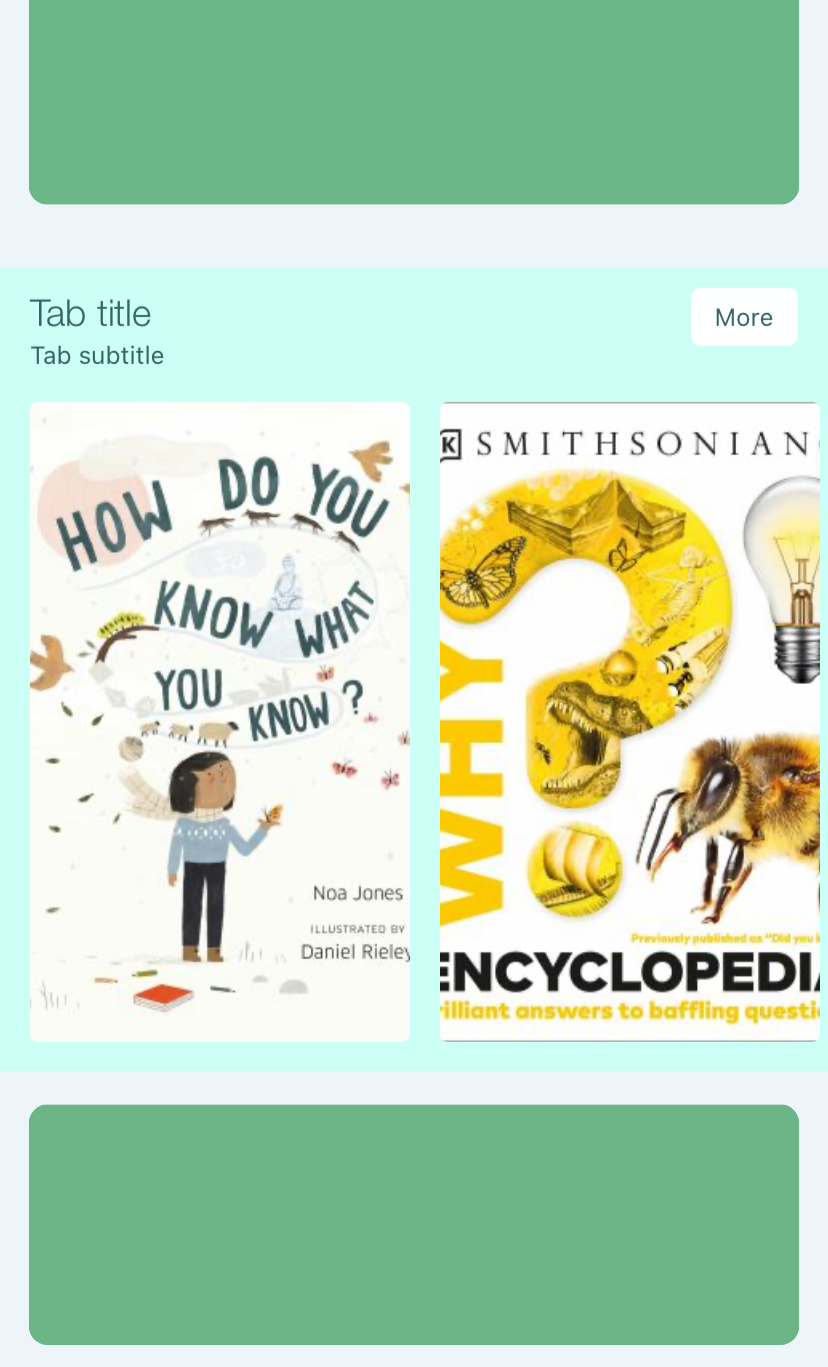
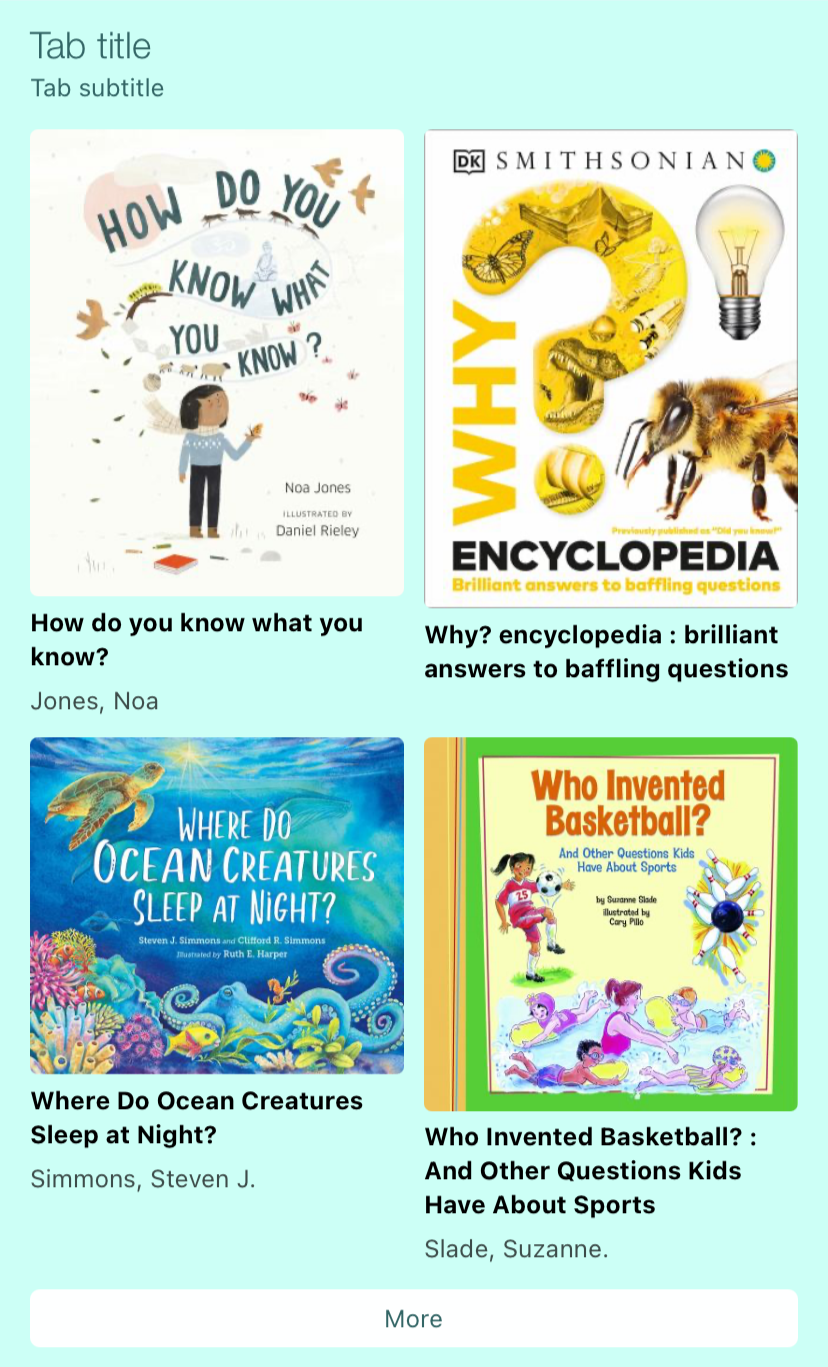
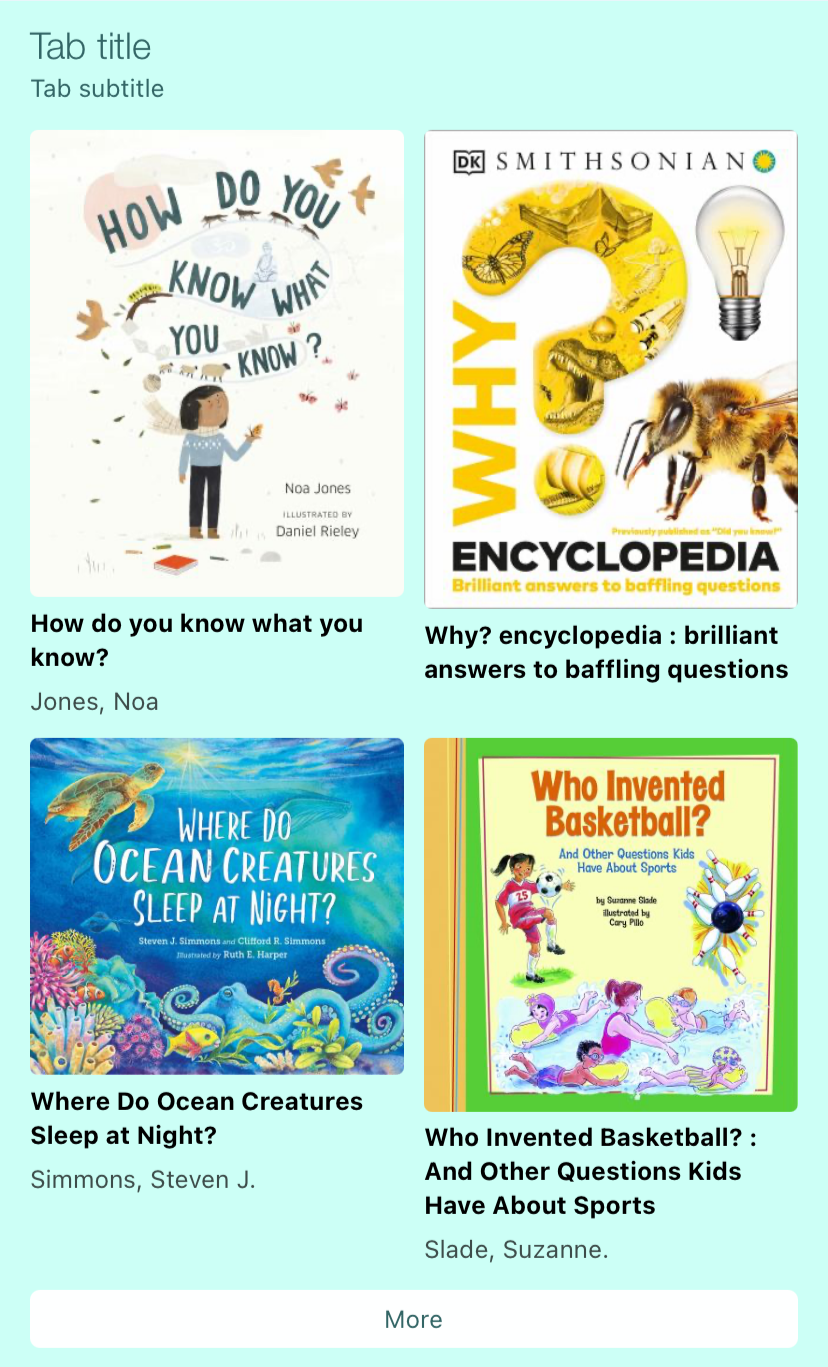
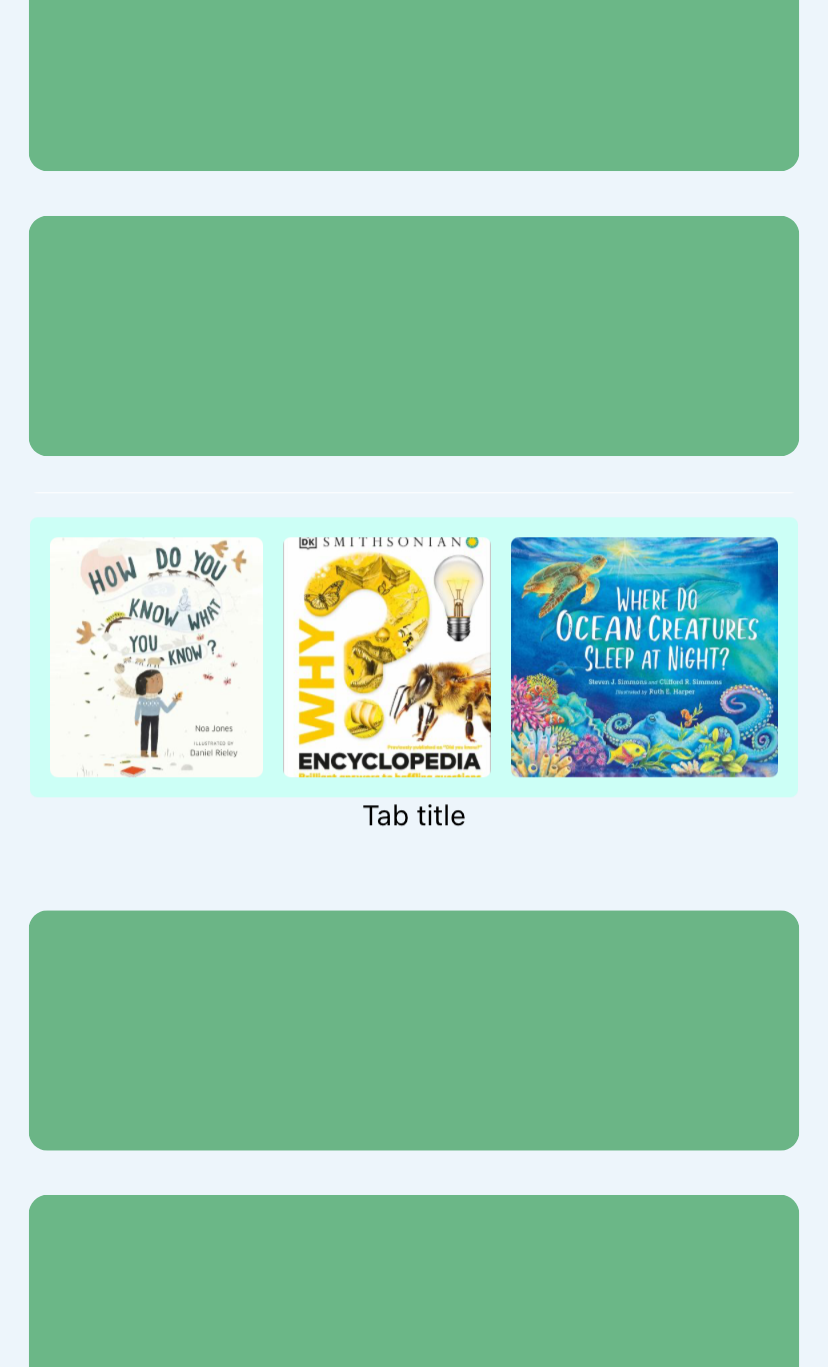
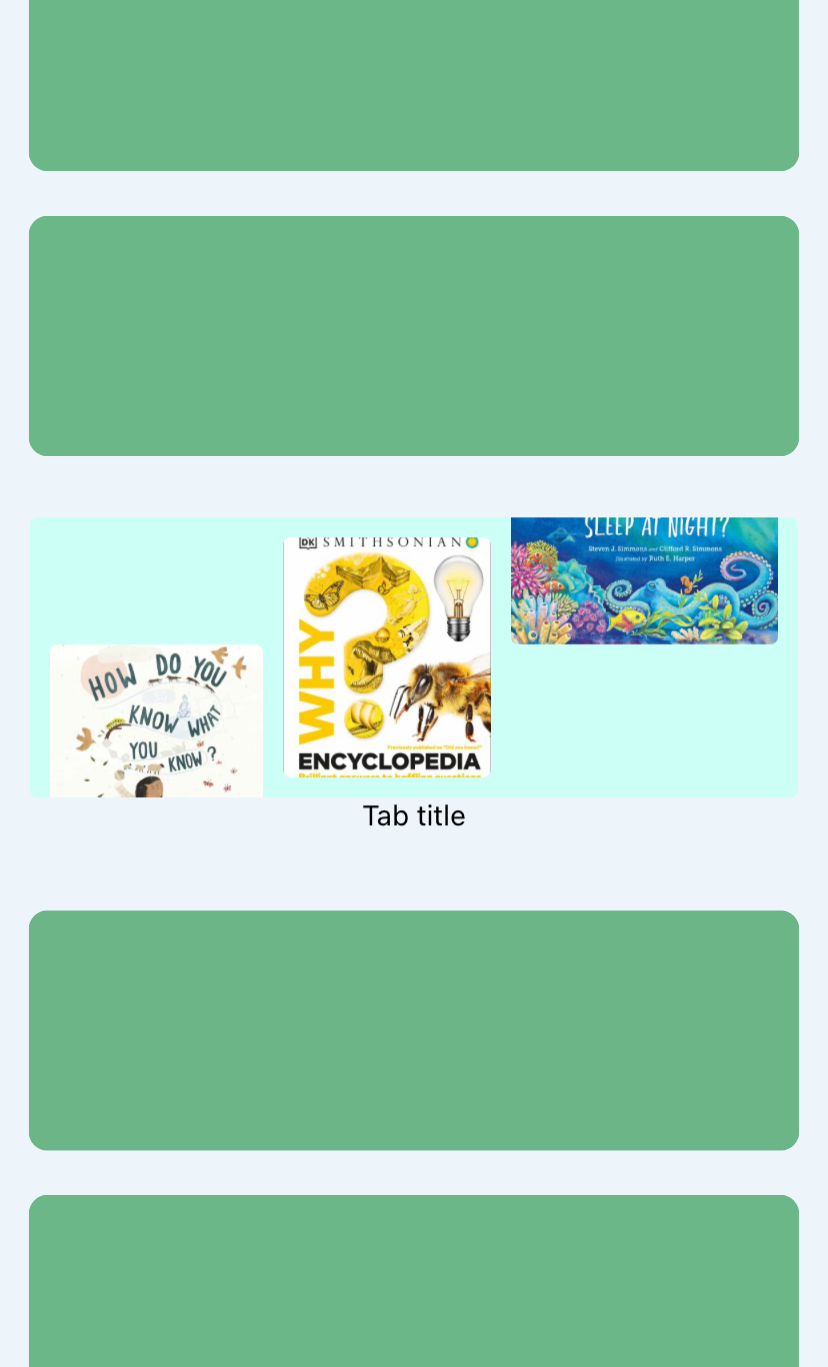
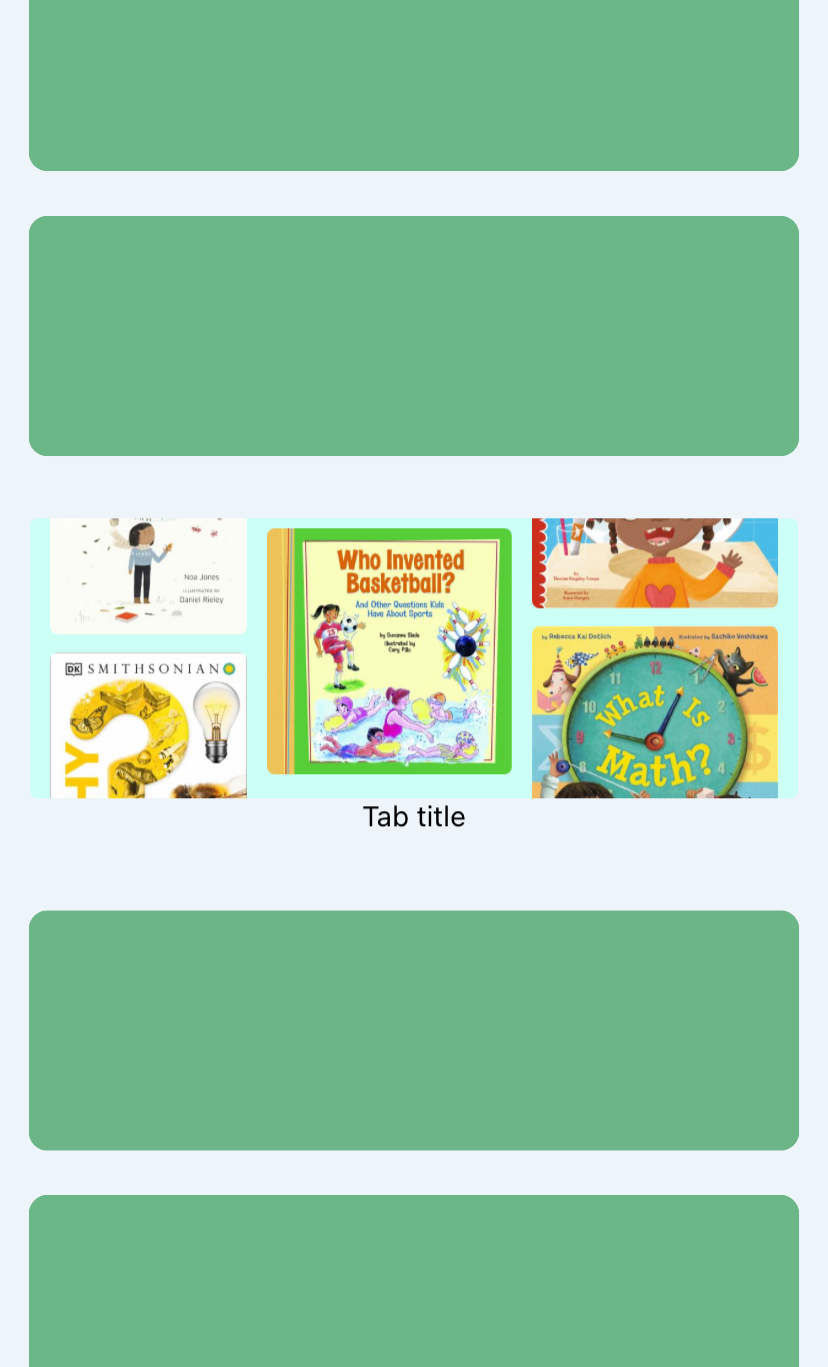
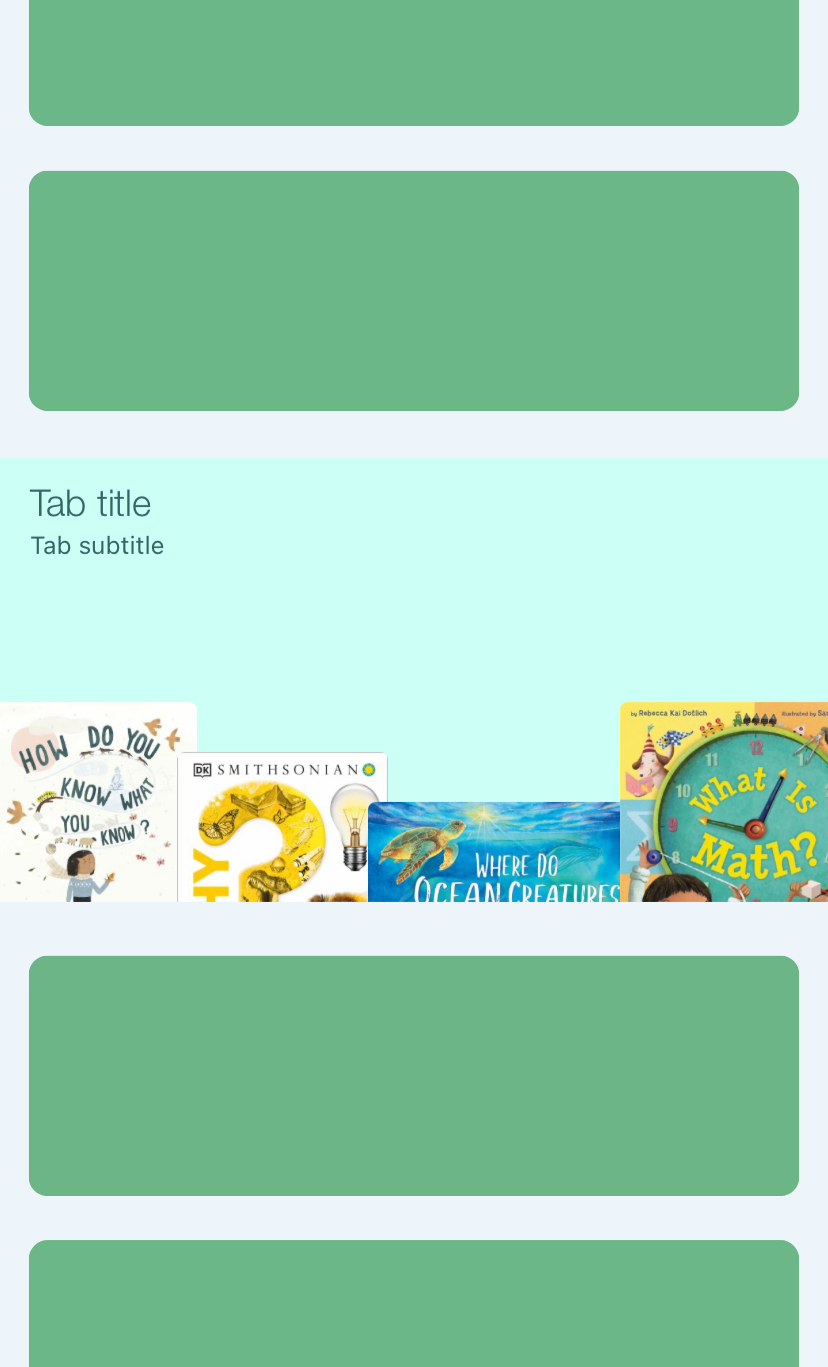
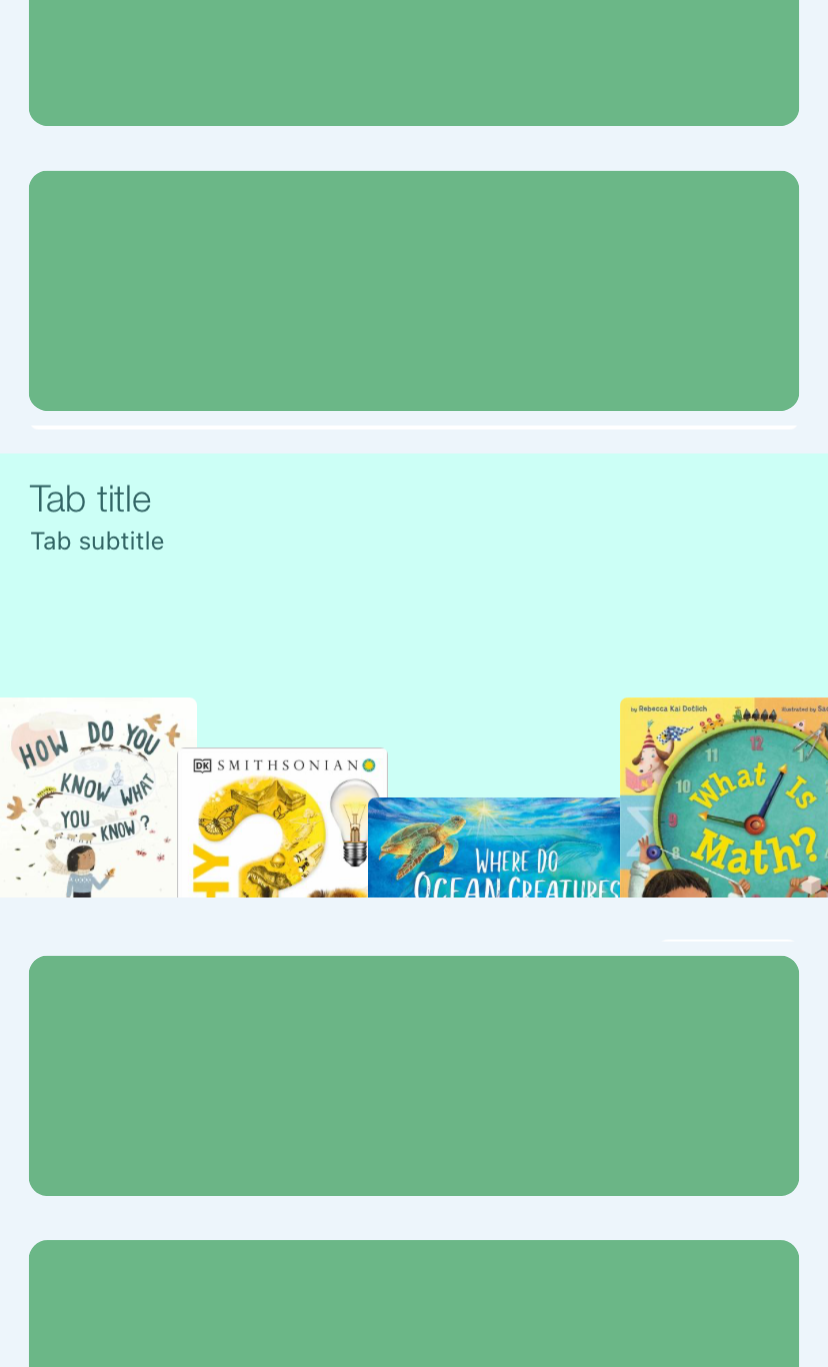
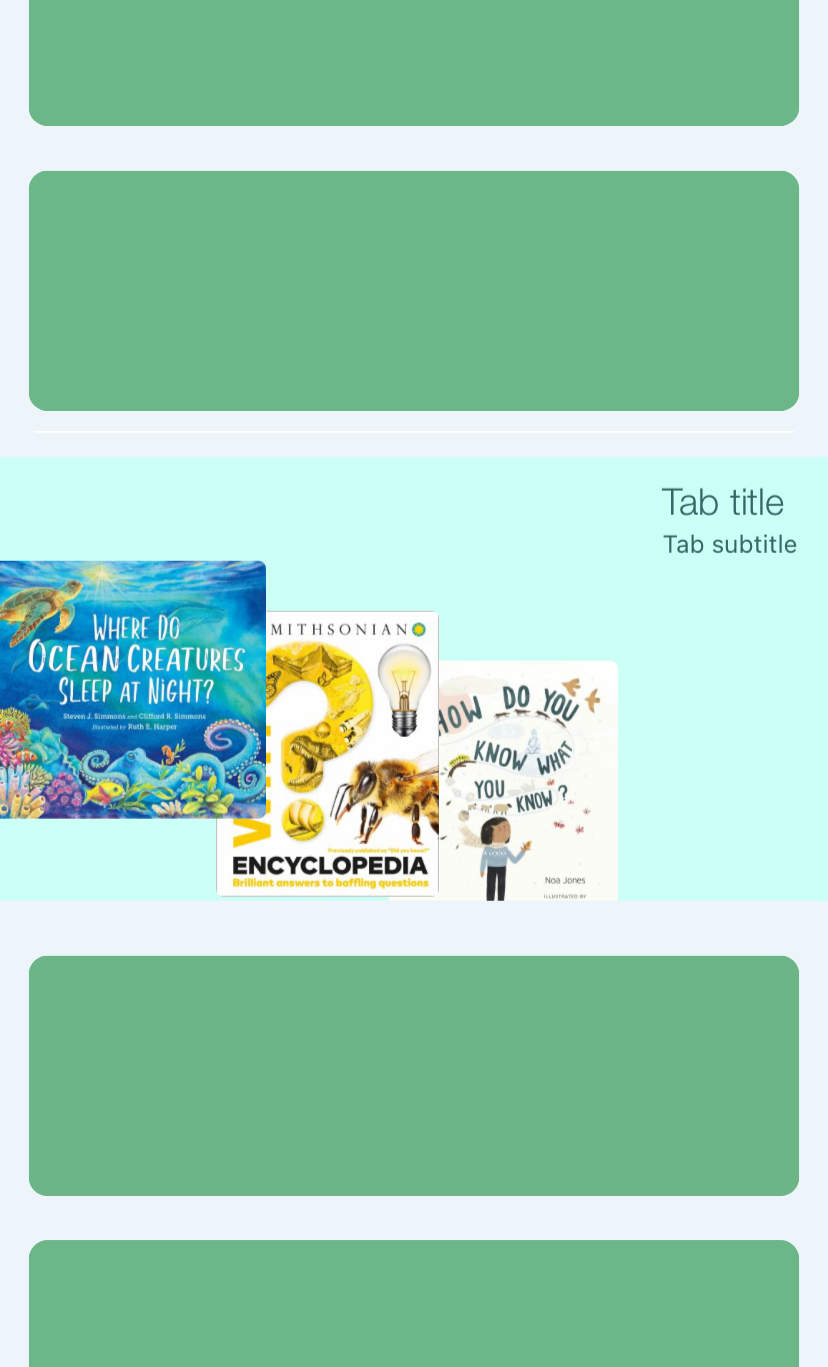
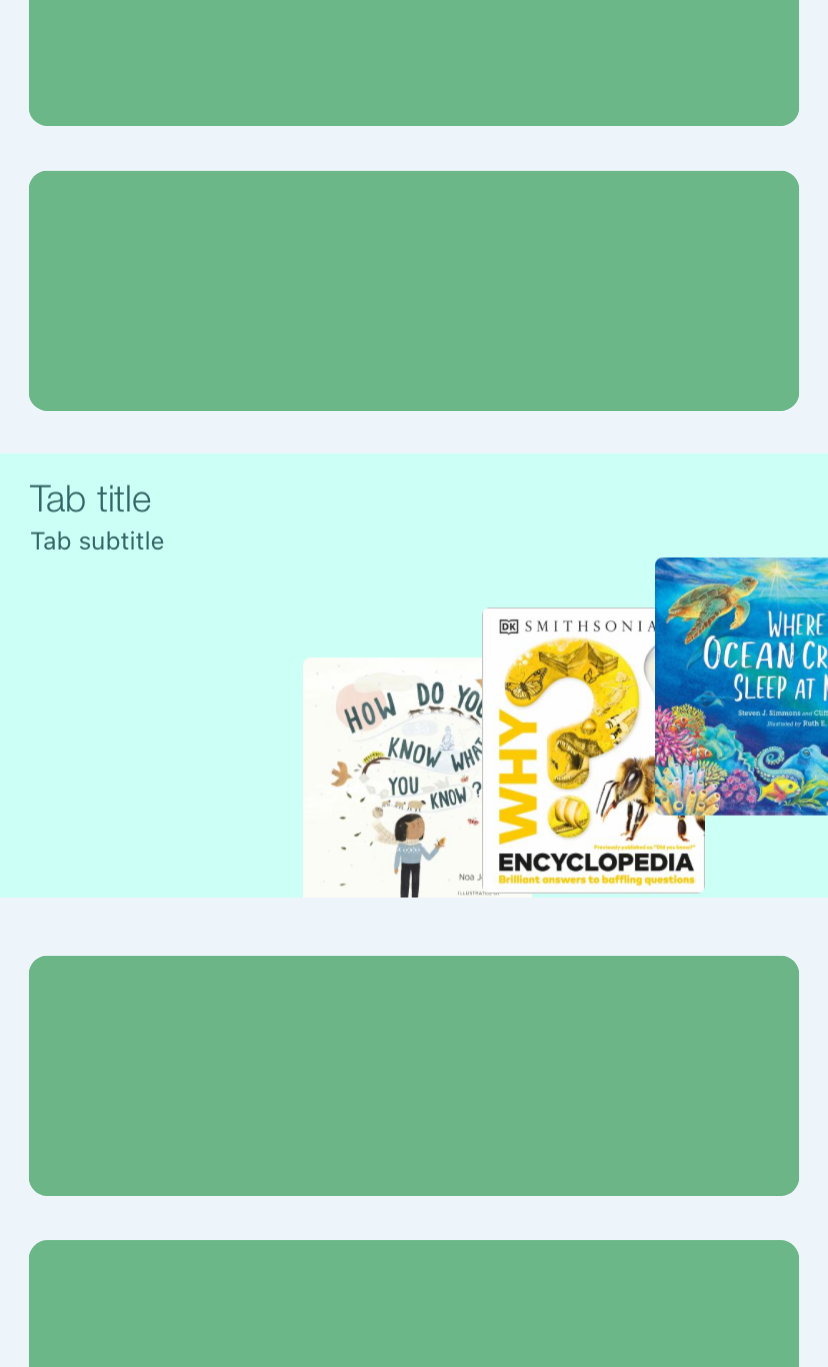
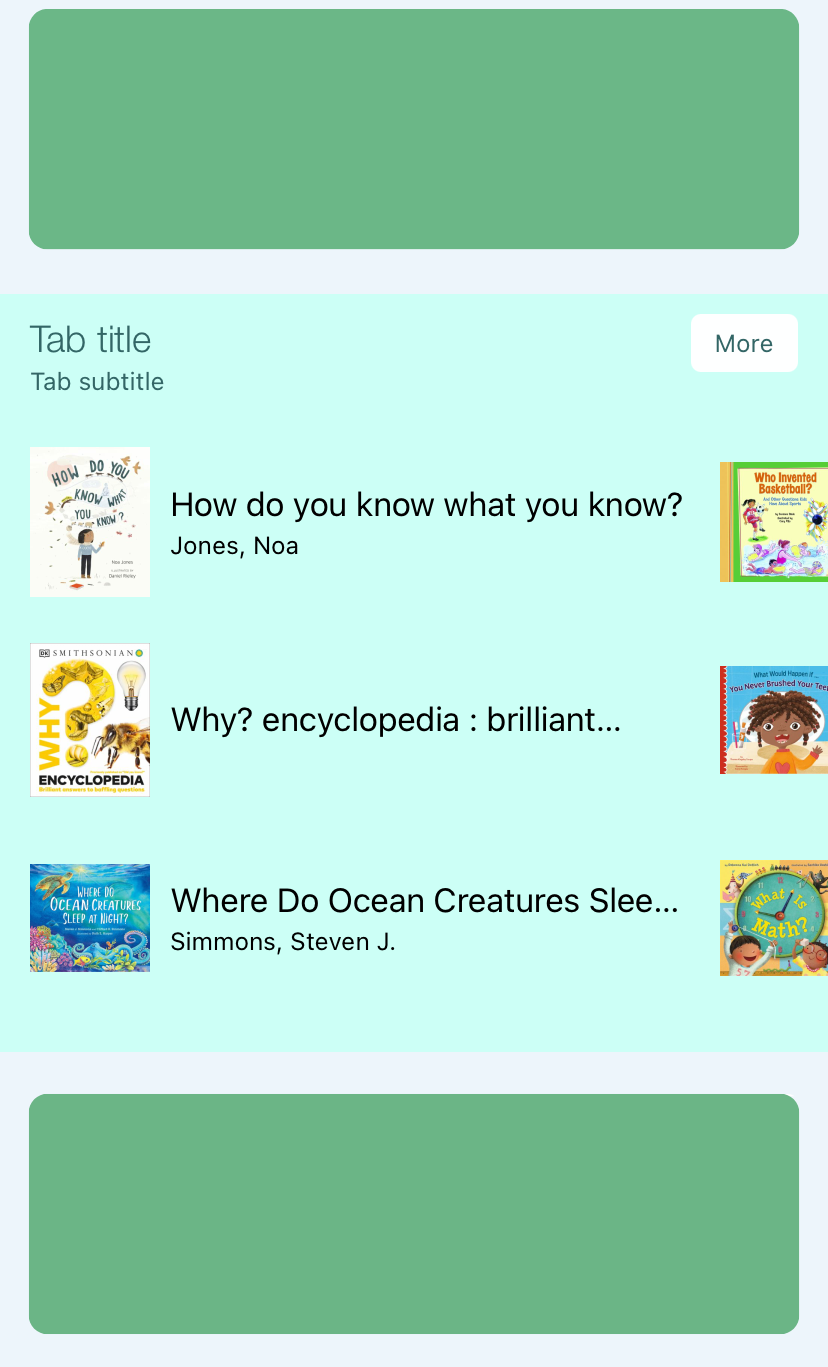
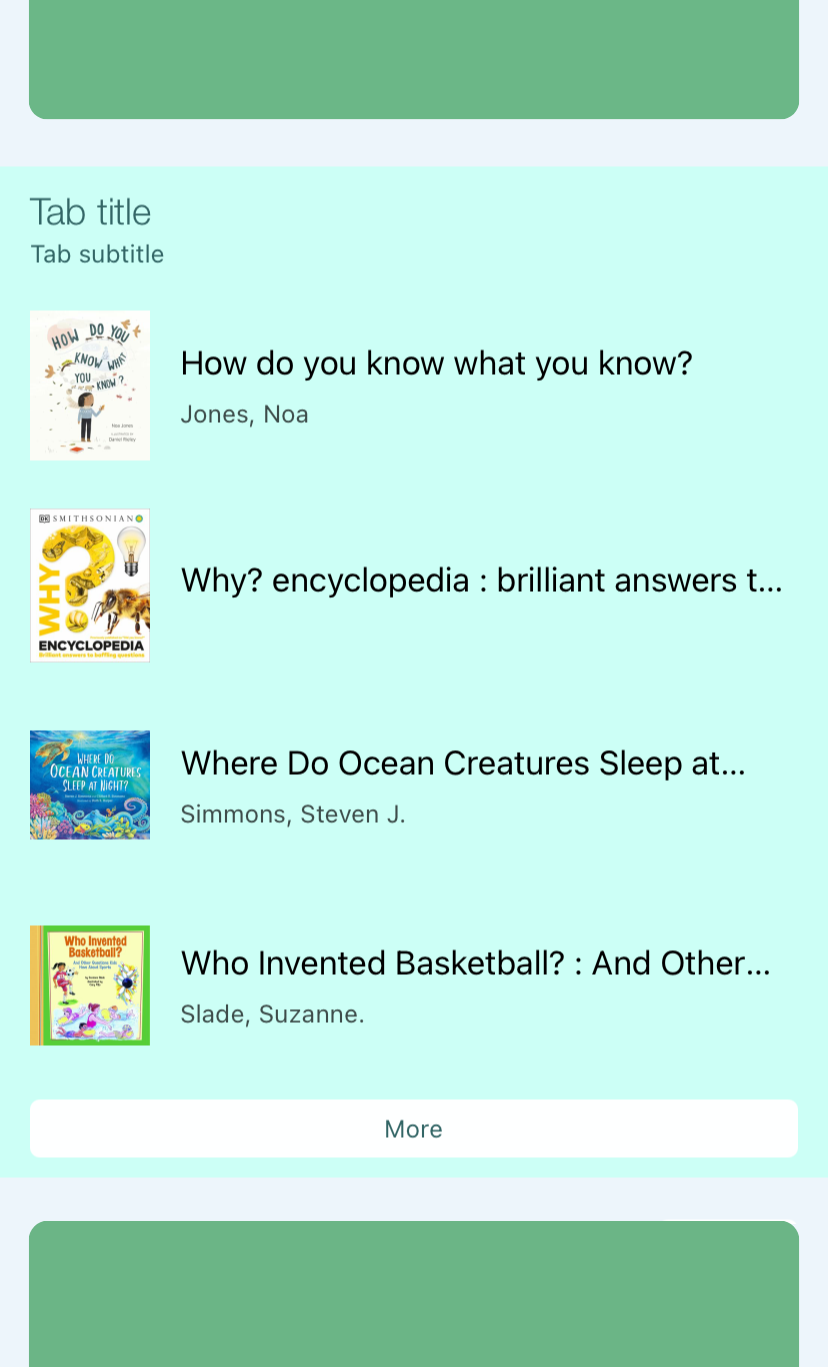
Style Example Gallery

Click an image to enlarge.

Note: some styles seem to not display as described (such as Button, List: ranked, and Large button: top). We expect bug fixes in future releases, and it’s always possible that additional styles or updates will be added. These are how they appeared as of 5/13/2026.

Scroll to Top